
CAN PMU Firmware Upgrade
Firmware updates add features and improve performance. Before upgrading, complete the wiring described in the CAN PMU overview.
NOTE
ArduPilot AC4.0 / AP4.0 and later support upgrading and debugging UAVCAN devices through the controller (PX4 firmware does not). The steps below require that firmware version or newer.
Parameter setup
Enable CAN PMU on the controller (CAN_P1_DRIVER set to 1), then set the following parameters to enable CAN SLCAN:
CUAV V5+ / V5 Nano
CAN_SLCAN_CPORTset to 1SERIAL7_PROTOCOLset to 22- Reboot the controller
NOTE
Under AP4.0 and later, CUAV V5 / V5 Nano / FMU V5 expose two USB serial ports: one for MAVLink, one for SLCAN. If only one appears, reinstall the USB driver.
Pixhack series / FMU V2 / FMU V3 / FMU V4
CAN_SLCAN_CPORTset to 1CAN_SLCAN_TIMEOUTset to 130000CAN_SLCAN_SERNUMset to 0- Do not reboot until the upgrade finishes
NOTE
STM32F4 does not support dual virtual USB ports, so controllers below FMU V5 can only use SLCAN after MAVLink transmission is disabled. With the settings above the USB port stops outputting MAVLink and becomes an SLCAN port; MAVLink resumes after a reboot.
Wiring
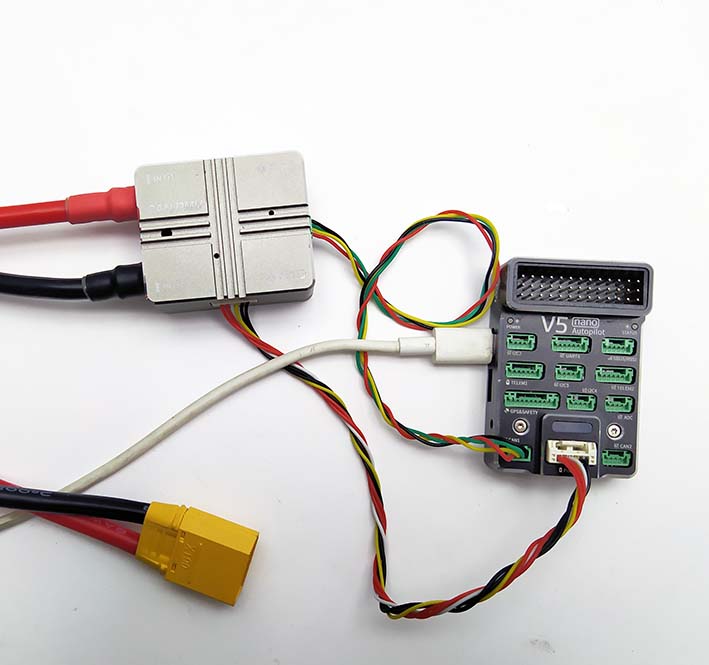
- Connect the CAN and Power cables
- Connect the controller to the PC over USB and power the CAN PMU from a battery
Upgrade procedure
Method 1: Mission Planner
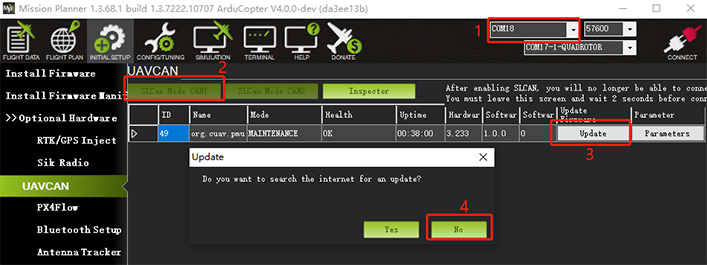
- Select the device port that corresponds to SLCAN
- In the UAVCAN view, click slcan mode CAN1
- Click Update and choose No in the dialog (Yes selects online firmware, No selects a local file)
- Select the firmware file
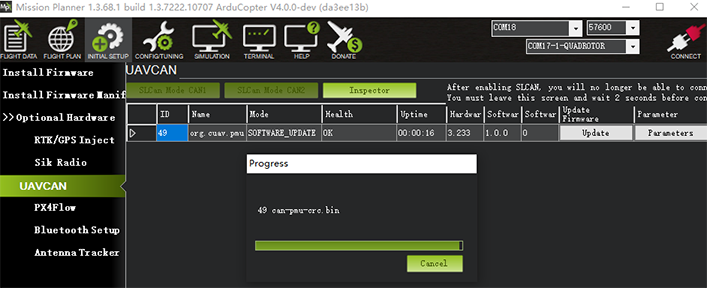
- Wait for the flashing to finish
Method 2: UAVCAN GUI Tool
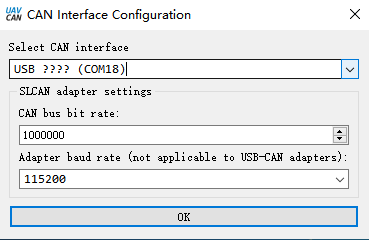
- Select the SLCAN device port and click OK
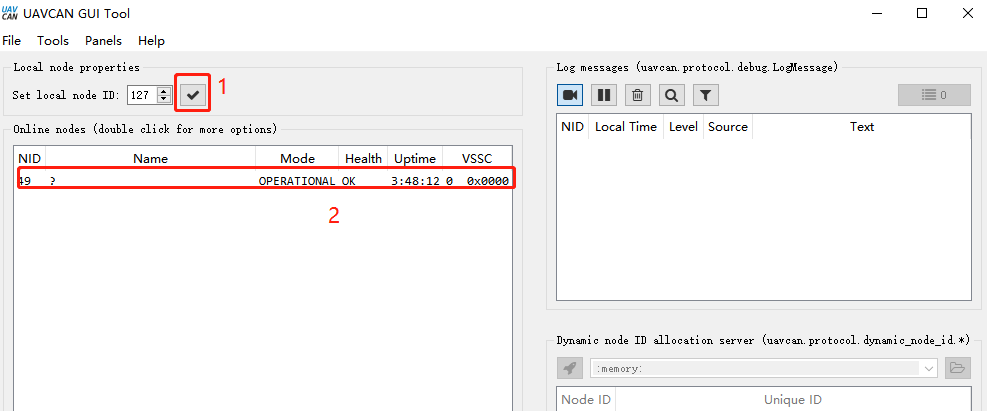
- Click √, then double-click the device entry
- Click Update Firmware and confirm with Yes
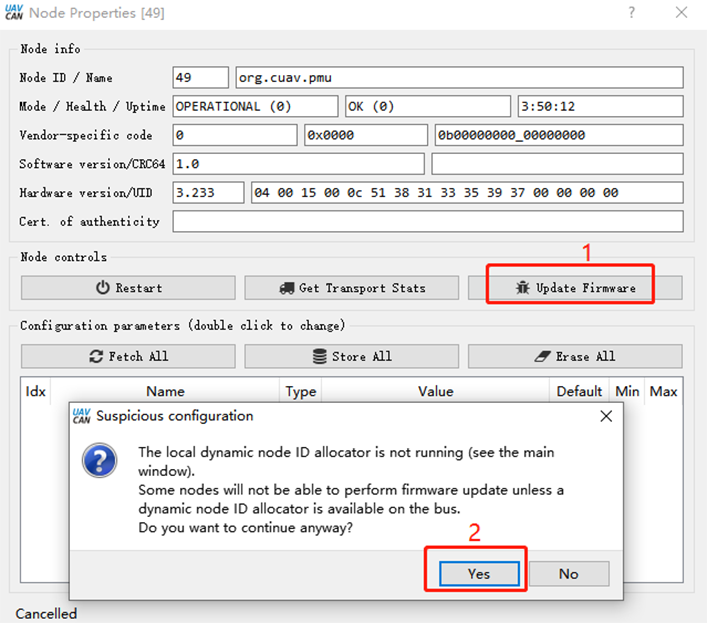
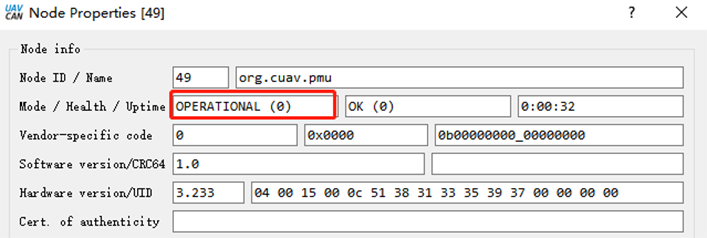
mode / health / uptimechange toSoftware_update

- Wait for the flashing to finish