

PMU 2Lite Configuration Guide (PX4)
This chapter covers using PMU 2Lite with a PX4 controller.
TIP
PMU 2Lite is normally plug and play and needs none of the setup below — only the wiring.
Enable voltage and current monitoring
Connect the controller to QGroundControl, set the following in the Full Parameter List, write the parameters and reboot:
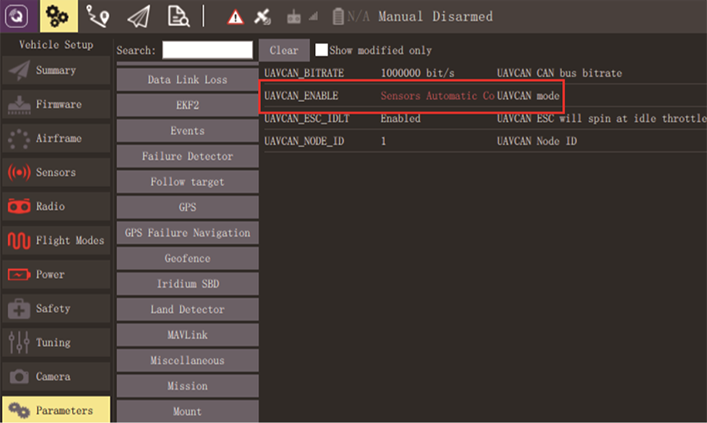
UAVCAN_ENABLEset to Sensor Automatic Config.UAVCAN_SUB_BATset to Raw data.
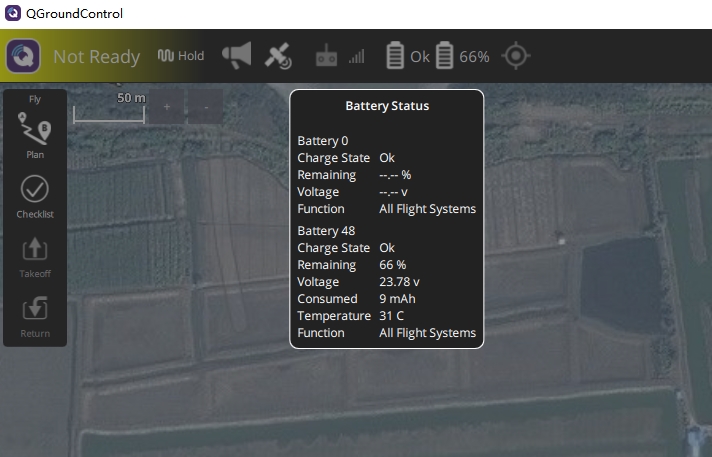
Power information
Parameters
PMU 2Lite exposes 7 user parameters:
BATTERY_ID          // Battery ID, currently unused
CAN_NODE_ID         // CAN node ID
CELL_SERIES_NUM     // Cell count, default 0 (auto-detect), used for capacity estimation
CELL_FULL_VOLTAGE   // Full voltage per cell, used for capacity estimation
CELL_EMPTY_VOLTAGE  // Empty voltage per cell, used for capacity estimation
CALIBRATION_PARAM   // Calibration flag, 1 = calibrated (read-only)
USE_TMP112          // Temperature sensor, default 1 (on), set 0 to disable
NOTE
The defaults suit most users; do not change them unless necessary.
Editing parameters
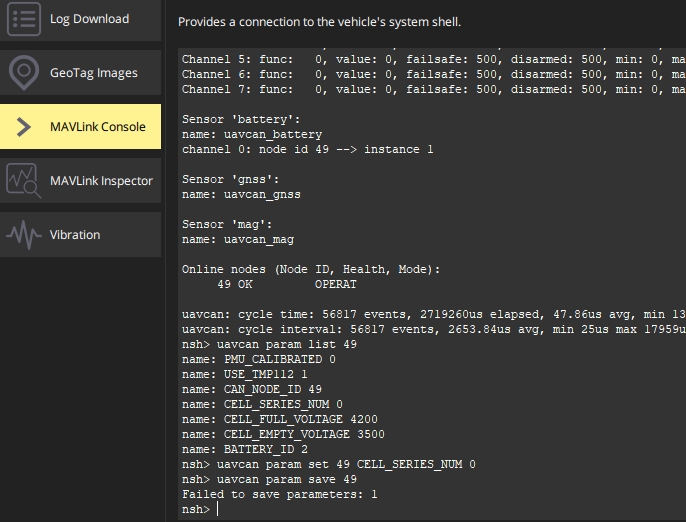
Open Analyze Tools > MAVLink Console in QGroundControl and send:
uavcan status— read the PMU 2Lite node IDuavcan param list <ID>— list parametersuavcan param set <ID> <name> <value>— change a parameteruavcan param save <ID>— save parameters
High-voltage cells
PMU 2Lite assumes a standard LiPo voltage platform (4.25V full). With high-voltage cells (4.35V / 4.45V) you must change the parameters so capacity is estimated accurately.
For a 6S pack with 4.35V full and 3.3V empty per cell, node ID 49:
uavcan param set 49 CELL_SERIES_NUM=6
uavcan param set 49 CELL_FULL_VOLTAGE=4350
uavcan param set 49 CELL_EMPTY_VOLTAGE=3300
uavcan param save 49
NOTE
If saving fails, reboot the device, read the PMU 2Lite parameters again and check whether the change took effect.