

PMU 2Lite Configuration Guide (ArduPilot)
This chapter covers using PMU 2Lite with an ArduPilot controller.
TIP
PMU 2Lite is normally plug and play and needs none of the setup below — only the wiring.
Enable voltage and current monitoring
Connect the controller to Mission Planner, set the following in the Full Parameter List, write the parameters and reboot:
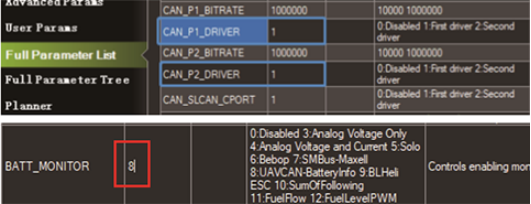
CAN_P1_DRIVERset to 1.CAN_P2_DRIVERset to 1.BATT1_MONITORset to 8.
TIP
Firmware older than ArduPilot 4.6 uses BATT_MONITOR (set it to 8).
Power information
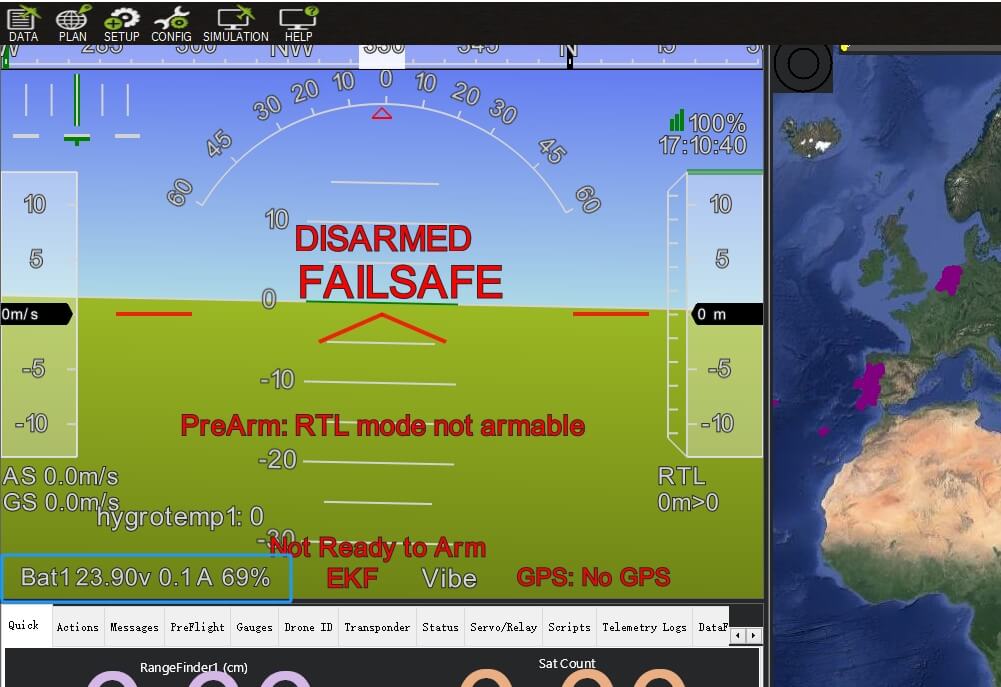
Parameters
PMU 2Lite exposes 7 user parameters:
BATTERY_ID          // Battery ID, currently unused
CAN_NODE_ID         // CAN node ID
CELL_SERIES_NUM     // Cell count, default 0 (auto-detect), used for capacity estimation
CELL_FULL_VOLTAGE   // Full voltage per cell, used for capacity estimation
CELL_EMPTY_VOLTAGE  // Empty voltage per cell, used for capacity estimation
CALIBRATION_PARAM   // Calibration flag, 1 = calibrated (read-only)
USE_TMP112          // Temperature sensor, default 1 (on), set 0 to disable
NOTE
The defaults suit most users; do not change them unless necessary.
Editing parameters
- Connect the controller to Mission Planner.
- Open Config > Optional Hardware > Dronecan/UAVCAN Setup.
- Click mavlink-can1 and find the PMU 2Lite section.
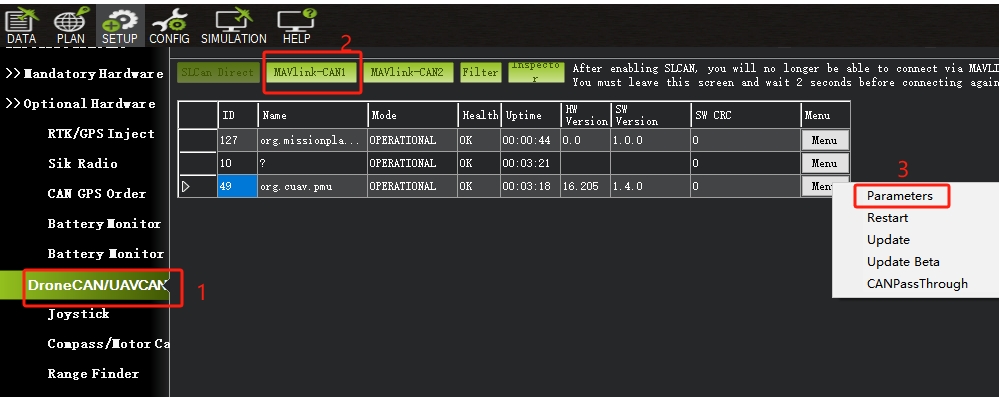
- Edit the parameters, save, then reboot the controller.
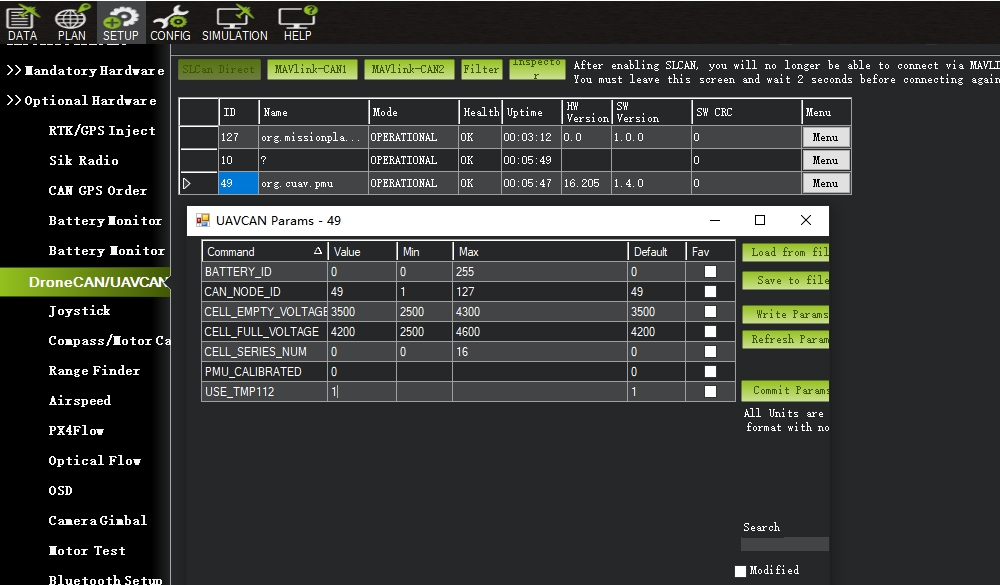
High-voltage cells
PMU 2Lite assumes a standard LiPo voltage platform (4.25V full). With high-voltage cells (4.35V / 4.45V) you must change the parameters so capacity is estimated accurately.
For a 6S pack with 4.35V full and 3.3V empty per cell:
CELL_SERIES_NUMset to 6.CELL_FULL_VOLTAGEset to 4350.CELL_EMPTY_VOLTAGEset to 3300.
Click Write params, then reboot the controller.