

C-RTK 9ps Parameter Config
NOTE
The C-RTK 9ps is plug-and-play under normal conditions and requires no user configuration. To meet the needs of different users, the following describes the RTK configuration using U-center.
Install U-center
- Download U-center
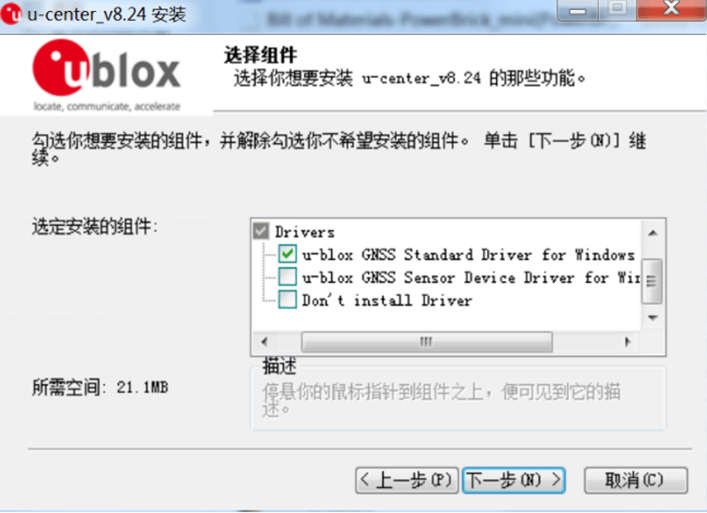
Follow the prompts to install the U-center software. During the installation process, you will be prompted to install the driver. Please ensure that only the "Standard Driver For Windows" option is checked, then follow the prompts to install. As shown below:
Load Config parameter
For a better user experience, CUAV provides a way to load configuration files to configure the C-RTK Series
Base station configuration file
NOTE
C-RTK rover and base station use different firmware, please upgrade firmware, then load the configuration file. Mission Planner also supports automatic configuration of C-RTK, just check the M8P config check box; C-RTK 9Ps dual-end uses the same firmware, and can directly load parameters.
configuration file:
Rover configuration file
NOTE
PIX flight controller can automatically configure C-RTK and C-RTK 9P mobile terminal, you do not need to configure. But if it is for other purposes, you can load the following configuration file.
Load configuration file to RTK
- Extract the configuration file
- Open u-center
- Connect the C-RTK 9P to the computer using the usb cable
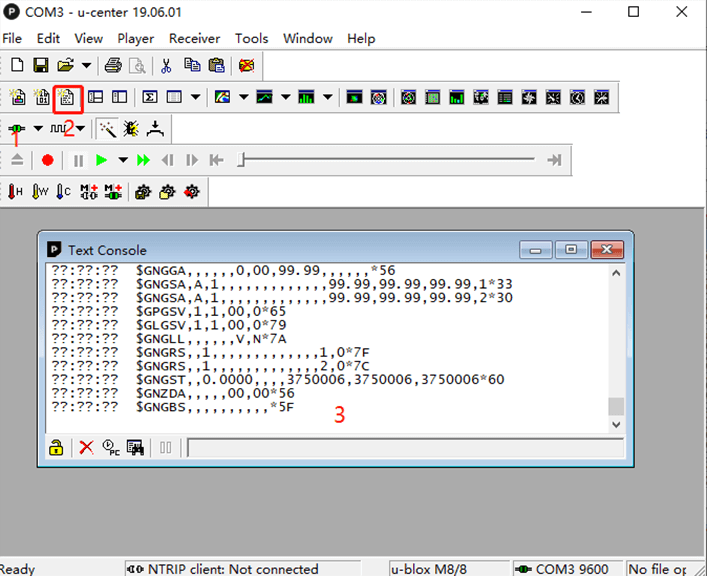
- Click on the 1 connection icon below to establish communication between the device and the U-center software, then click on the 2 icons and the Text console interface has data.
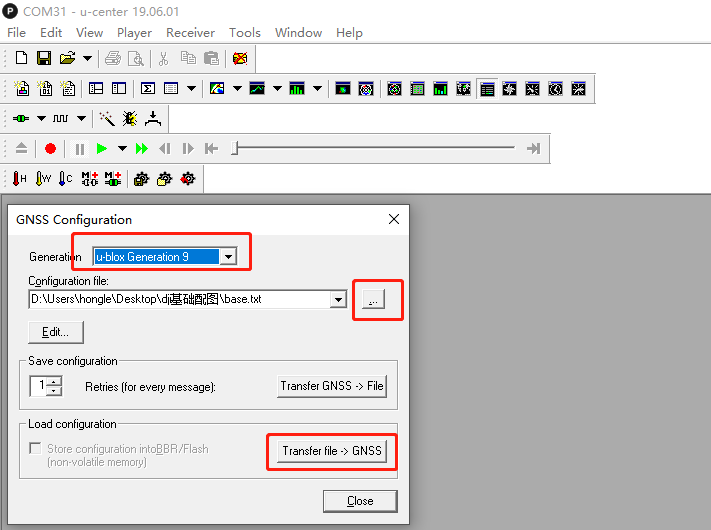
- Click Tools>Gnss Configuration> "..." button to select the loading file.
- Click "Transfer File-> GNSS"
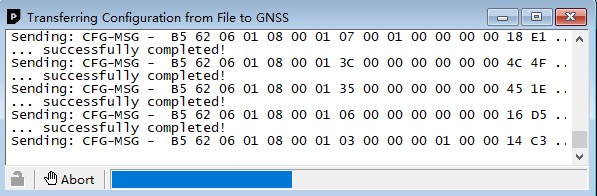
Wait for the parameter to be written.
Manual Configuration
C-RTK 9P Base Manual Configuration
NOTE
The C-RTK 9P requires parameter configuration using U-center version 19.06 or higher.
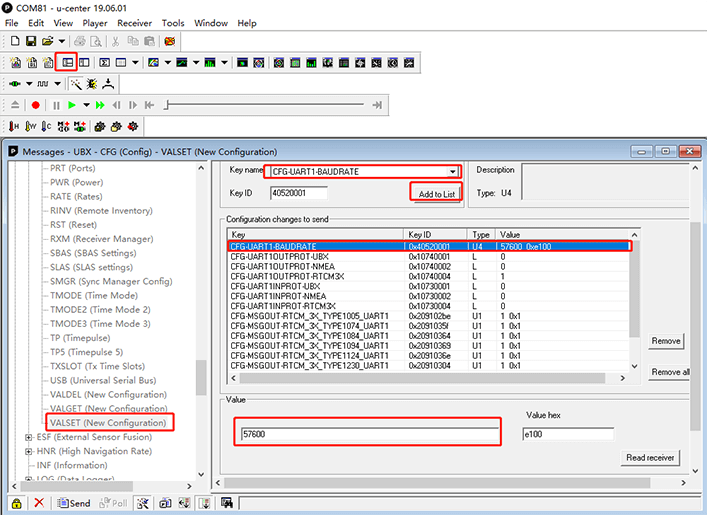
- Open Messages view
- Click "UBX->CFG->VALSET",Enter the parameter configuration page
- Key name Select the name of the parameter you need to modify
- Click "Add to List", Send the parameters to the list of parameter configurations below
- Click on the parameters and you can configure the selected parameters.
- Follow the instructions above to configure the parameters in the table below.
| KEY name | value | Layers |
|---|---|---|
| CFG-UART1INPROT-NMEA | 0(false) | Flash, RAM |
| CFG-UART1INPROT-UBX | 0 | Flash, RAM |
| CFG-UART1INPROT-RTCM3X | 0 | Flash, RAM |
| CFG-UART1OUTPROT-UBX | 0 | Flash, RAM |
| CFG-UART1OUTPROT-NMEA | 0 | Flash, RAM |
| CFG-UART1OUTPROT-RTCM3X | 1 | Flash, RAM |
| CFG-MSGOUT-RTCM_3X_TYPE1005_UART1 | 1 | Flash, RAM |
| CFG-MSGOUT-RTCM_3X_TYPE1074_UART1 | 1 | Flash, RAM |
| CFG-MSGOUT-RTCM_3X_TYPE1084_UART1 | 1 | Flash, RAM |
| CFG-MSGOUT-RTCM_3X_TYPE1094_UART1 | 1 | Flash, RAM |
| CFG-MSGOUT-RTCM_3X_TYPE1124_UART1 | 1 | Flash, RAM |
| CFG-MSGOUT-RTCM_3X_TYPE1230_UART1 | 1 | Flash, RAM |
| CFG-TMODE-SVIN-MIN-DUR | 10 | Flash, RAM |
| CFG-TMODE-MODE | 1 - Survey In | Flash, RAM |
| CFG-TMODE-SVIN-ACC-LIMIT | 25000 | Flash, RAM |
| CFG-UART1-BAUDRATE | 57600 | Flash, RAM |
- Click “Send”
- Click “Receiver->Action->Save Config”
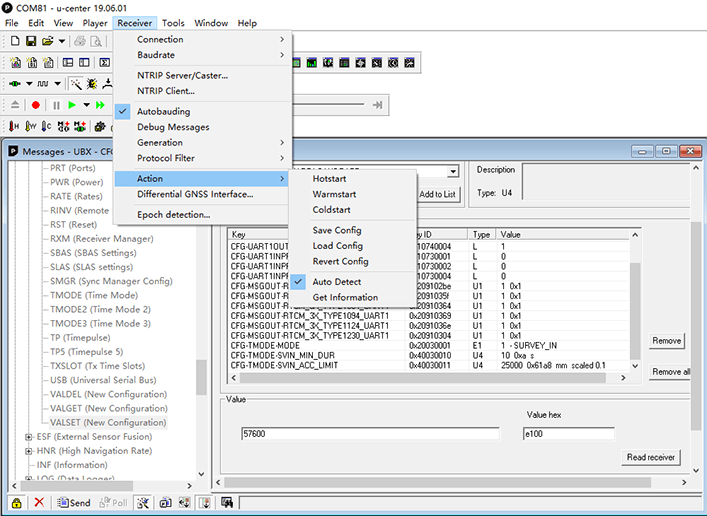
C-RTK 9P Rover Manual Configuration
Configure the following parameters according to the base station configuration method:
| KEY name | value | Layers |
|---|---|---|
| CFG-UART1-BAUDRATE | 57600 | Flash, RAM |
| CFG-UART1INPROT-NMEA | 0 | Flash, RAM |
| CFG-UART1INPROT-UBX | 0 | Flash, RAM |
| CFG-UART1INPROT-RTCM3X | 1 | Flash, RAM |
| CFG-UART1OUTPROT-UBX | 0 | Flash, RAM |
| CFG-UART1OUTPROT-NMEA | 1 | Flash, RAM |
| CFG-UART1INPROT-RTCM3X | 0 | Flash, RAM |
- Click “Send”
- Click “Receiver->Action->Save Config”