
Upgrade firmware
This article mainly describes how to upgrade the firmware for C-RTK 2HP.
Preparations before upgrade
- Flight controller running ArduPilot firmware
- Download Dronecan GUI/Mission Planner
- Connect C-RTK 2HP to controller
- Contact CUAV staff to obtain the firmware package.
NOTE
C-RTK 2HP is maintained and developed by CUAV, it has better compatibility and stability.
Set flight controller parameters
To upgrade the C-RTK 2HP firmware through the flight controller, you also need to set the following parameters in the Mission Planner ground station"All parameter table:
For flight controllers using STMF7XX/STMH7XX as MCU:
"CAN_SLCAN_CPORT set to 1
'Serial7_Protocol set to 22- Reboot
NOTE These flight controllers will have two usb driver ports in AP4.0/AP4.1 and above firmware, one is the flight controller mavlink output port, and the other is the slcan port; if there are no two ports, please uninstall the driver and reinstall)
For flight control using STM32F4xx as MCU
CAN_SLCAN_CPORT set to`1`
CAN_SLCAN_TIMEOUT set to 130000
CAN_SLCAN_SERNUM set to 0
Do not reboot until the upgrade is complete.
NOTE
STM32F4 does not support dual virtual USB ports, so the flight control of FMU v5 and below (not included) can only be used for SLCAN after turning off MAVlink transmission; after the above settings, USB will stop outputting mavlink data and change to SCLAN port; MAVlink will be restored after restarting transmission.
Load firmware
Upgrade using DroneCAN GUI
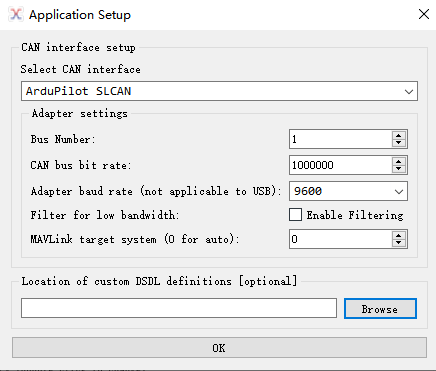
- Select the device port corresponding to slcan and click ok
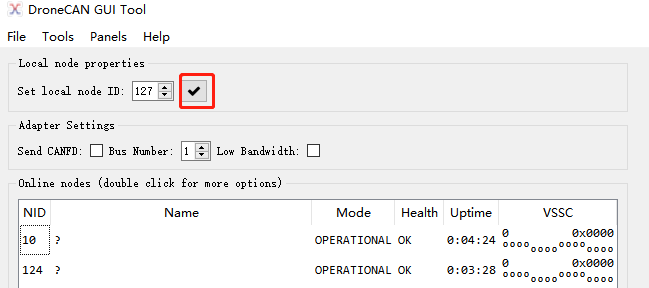
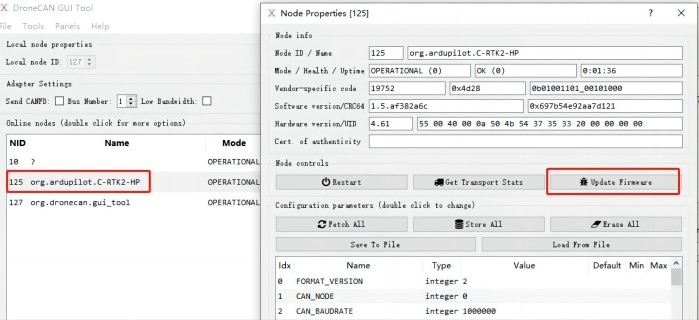
Click "√"; then double-click the device information
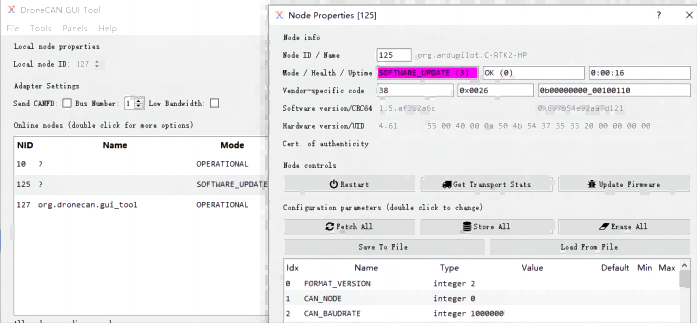
Click "update firmware", pop up a message box and click "yes"
- The mode/health/uptime item becomes "Software_update"
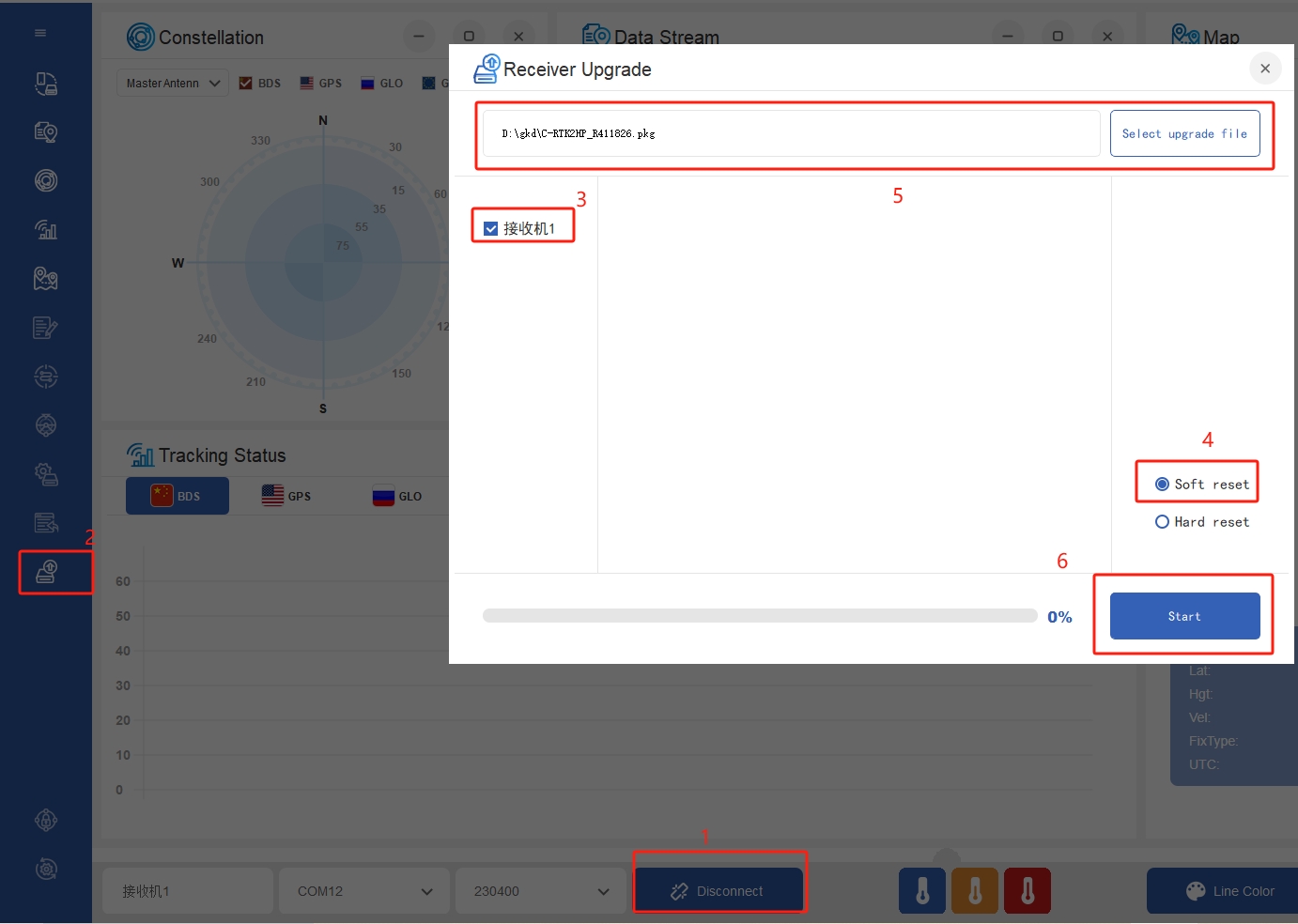
Upgrade GNSS system firmware
- Connect C-RTK2 HP to computer using USB cable
- Run Uprecise software and follow the steps below to upgrade the firmware.