

Detailed Functions
Summary
ONE BOX is mainly for the following functions:
Use scene selection
External battery support
Automatic frequency search
Manual frequency selection
Display flight status and system information
Extend XBEE data
Output AV signal, external monitor
Use scene selection
Function overview
ONE BOX has designed 2 usage scenarios:
1** Computer equipment:**Simultaneously turn on 2 USB devices and let the computer discover both UVC and FTDI devices
There is no compatibility issue with the computer, so allow 2 USB devices to be enabled at the same time2** Android device: **the UVC video driver is turned on when data is transmitted over data and the ground station is successfully connected.
Enable FTDI devices first, then enable UVC devices
This prevents some Android devices from instantly discovering 2 USB devices
how to use
Each time power is entered into the system, there will be a selection menu, select the corresponding common mode
Automatic frequency search
Functional Overview
ONE BOX has designed a lightning frequency search function to automatically search for and scan the frequency channel and signal strength of the video signal in the current environment, and display the corresponding channel and signal strength on the screen.
how to use
Press the** middle confirmation** key of the function key to call up the function menu. Select the automatic search function icon. Press the confirmation key.
ONE BOX will automatically start frequency search. After about **15 **seconds, **42 **channels will be searched, and the channel with the strongest signal will automatically be ranked first.
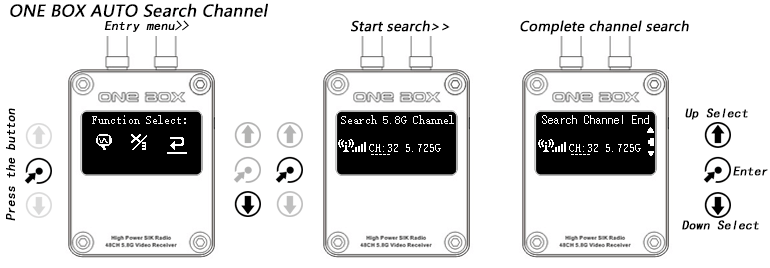
Press the Enter key to select the current channel or toggle the arrow keys to select the next channel/previous channel
Manual frequency selection
Function overview
In addition to automatic frequency search, it also provides the ability to manually select channels
How to use
Just toggle the up and down function keys to select channels
Display flight data and system information
ONE BOX's OLED display mainly has 2 display modes:
Normal state: The display has been successfully connected to the flight controller
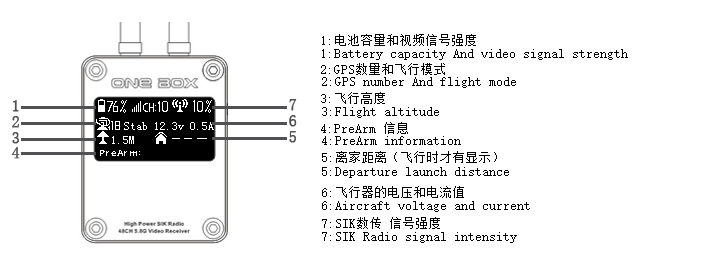
Extend XBEE or other TTL data
Functional Overview
ONE BOX has a built-in channel switcher to switch the built-in SIK channel to the RADIO expansion interface
This supports other TTL data transmissions such as XBEE
How to use:
Press the function key -> Confirmation key
Recall a menu
Select XBEE / 3DR icon to enter
Select XBEE data transfer, confirm that it is using external data transfer
quick charge
Functional Overview
ONE BOX has a built-in AXP228 power management chip with a theoretical value of up to 2A charging current
How to use
First install the external battery, insert the USB at the same time, then press the PSW button for a long time, and then turn off to enter the fast charge mode.
The screen shows a charge status and battery capacity percentage