

Software Instructions
HFlight connection method
HFlight Android mobile phone ground station is a mobile ground station officially promoted by Leixun (CUAV). It is perfectly compatible with all products of the company and is welcome to download and use. Software download link: HFlight.
For PW-Link wireless data transmission module, HFlight acquires and displays flight control information as follows:
Make sure that the PW-Link and Pix flight controllers are connected properly.
The mobile phone searches for the WiFi network, the connection name is: CUAVWTR_XXXXXX, the default password: cuavwtr666.
Open HFlight mobile software, select UDP connection mode, operation as shown in figure;
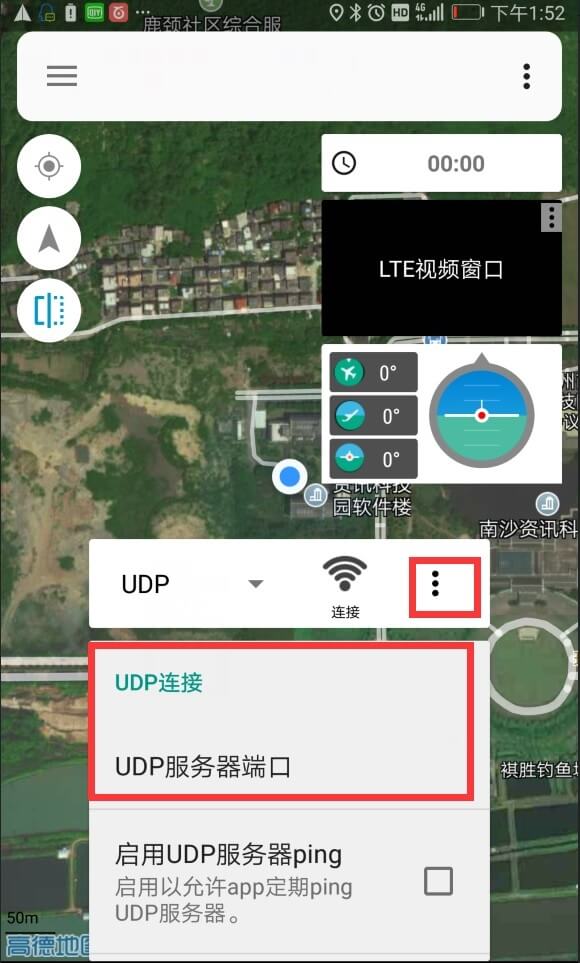
- Confirm the UDP server communication port and check if the port is 14550;
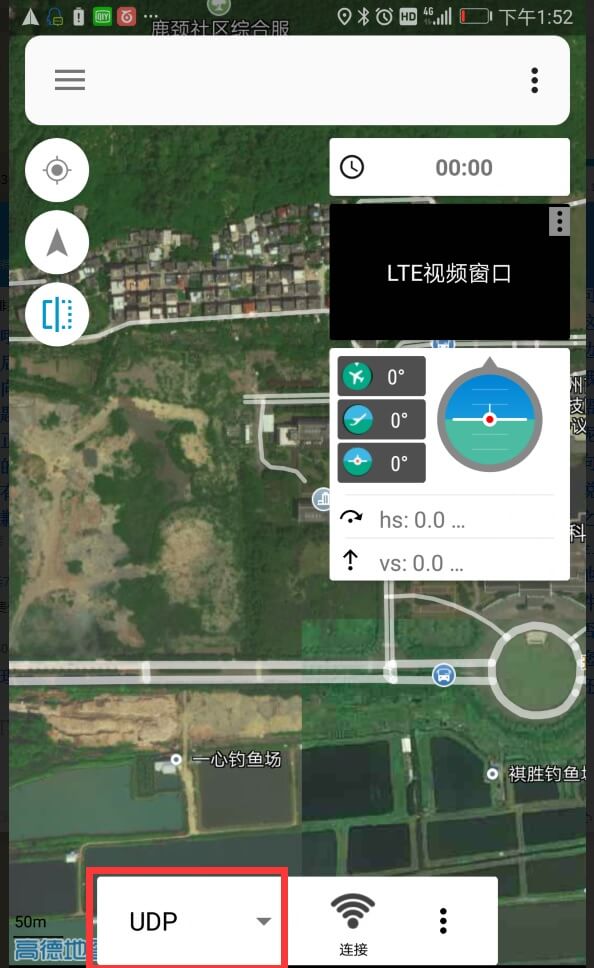
- Finally, click on the Connect button. After successfully obtaining the flight control information, the data interface will be displayed.
HFIight Modify Configuration
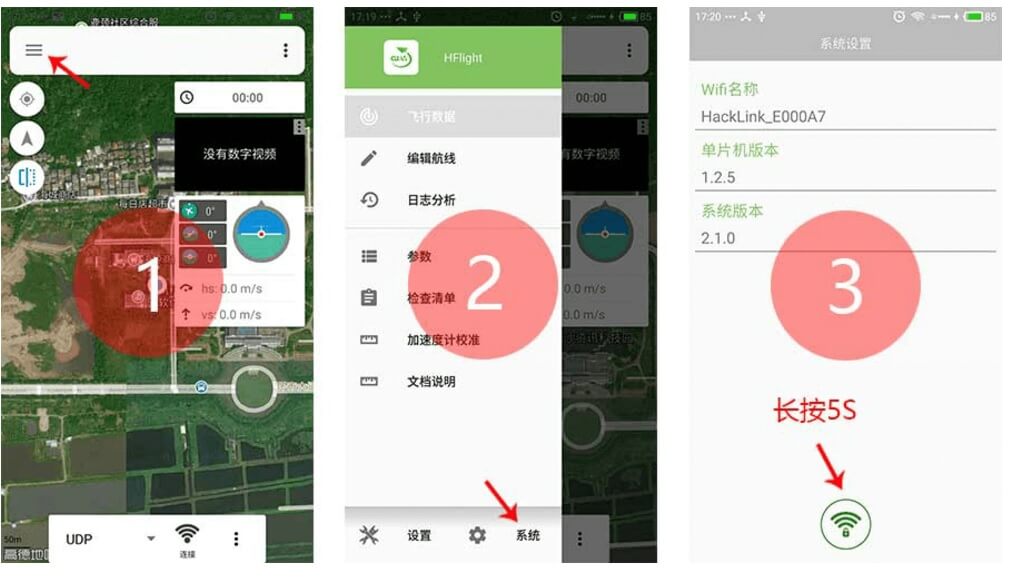
HFlight provides a window to modify the PW-Link network configuration, allowing you to modify the network's name,password,channel, andfor version information. The specific operation method is to first open the HFlight mobile phone software side menu, click the system button, enter the system settings interface, long press the network settings icon. The operation is shown in the figure:
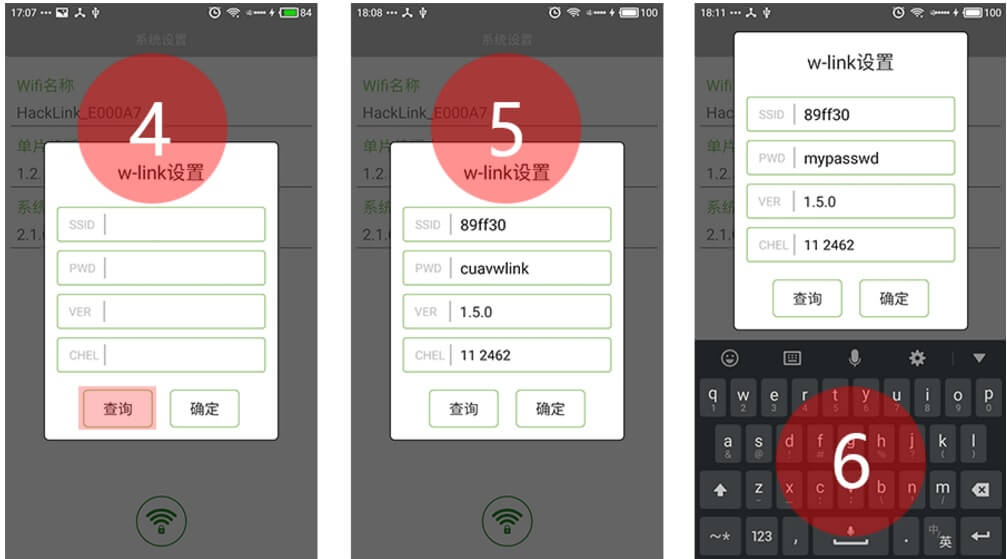
The specific procedure for the PW-Link configuration window is to first click on the query button to obtain the network information of the PW-Link module. After the success, modify the corresponding options. The operation is shown in the figure:
Mission Planner connection
The computer-side ground station software is operated by Mission Planner. Specific steps are as follows:
The computer uses a wireless network card to connect to the network CUAVWlink_XXXXXX, password cuavwlink;
Open the Mission Planner software, select the option UDP in the upper right corner, and click the Connect button;
Finally, enter 14550 in the popup port edit field and click OK;
Wait for data reception to complete;
Note
Some users report that the computer is connected to the PW-Link network, but the Mission Planner cannot receive data. The reason for this problem is because you have disabled network permissions. [!NOTE] Note Open the Control Panel>Windows Firewall>Allow apps to communicate through the firewall>Open MP All Network Permission.