

Ethernet Configuration
ArduPilot 4.5 and later provides a network interface framework that supports both LAN and WAN connections.
These CUAV® controllers have an Ethernet MAC (marked ETH):
- 7-Nano V2 / 7-Nano
- Pixhawk V6X v2 / Pixhawk V6X
- X25 EVO
- X25 MEGA
The following controllers can reach Ethernet over a serial port using PPP (Point-to-Point Protocol), a PPP-to-Ethernet adapter or a custom firmware build. See PPP configuration for details.
- X7+
- X7+ Pro
- Nora+
Today ArduPilot's serial manager interfaces are not limited to UARTs — they also work over a network connection, alongside the Ethernet and PPP interfaces. LUA script bindings also let a controller run web-server-like applications. A web server applet is provided that makes log download faster and can display vehicle and system status.
For networked peripherals, the ArduPilot AP_Periph firmware makes it straightforward to build network devices over a peripheral's serial or DroneCAN interface, and to pass their data to the controller across the network.
ArduPilot network framework
ArduPilot provides a NET manager with an IP protocol engine and UDP and TCP transport layers. There are four configurable IP ports, each of which can be UDP or TCP, client or server. The controller can treat the data coming in on those ports as:
- Any serial device ArduPilot supports (rangefinder, gimbal, serial ESC and so on)
- A MAVLink link to another vehicle or a GCS
LUA scripts running on the controller can also reach those data ports.
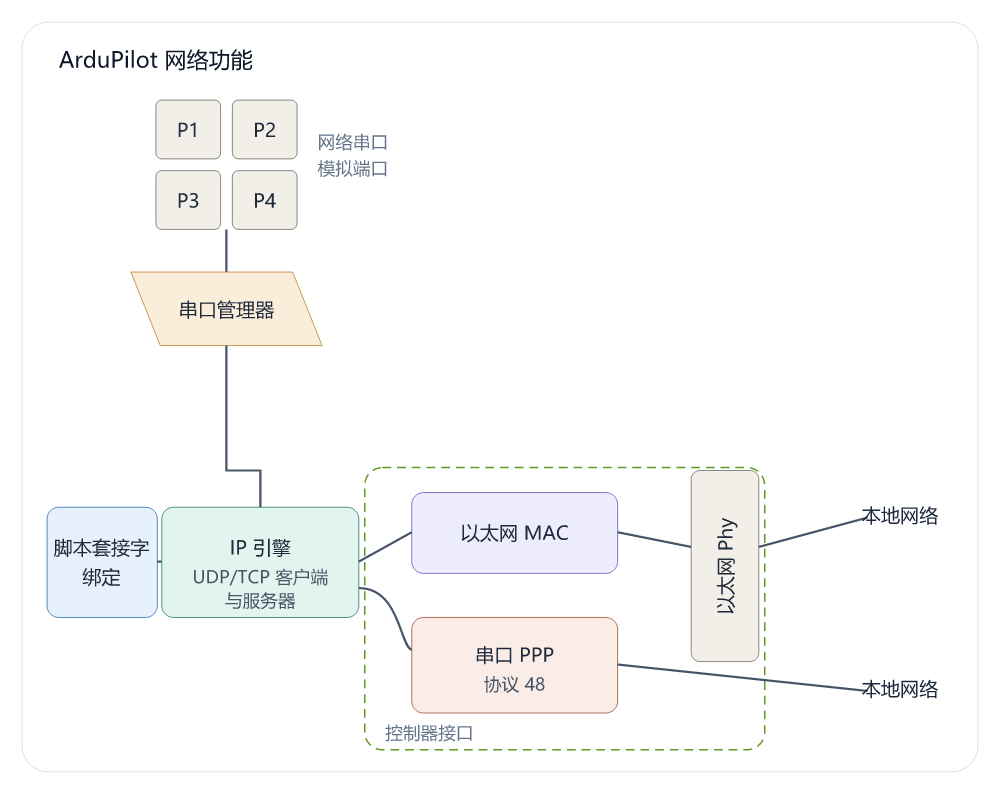
Configuration in brief
NET_ENABLE must be set to 1, and the controller restarts automatically, before the network parameters appear:
🌐 Ethernet MAC
NOTE
For controllers with an Ethernet MAC. This is the global 6-byte MAC address; it defaults to a value generated from the CPU unique ID, and can be set manually.
| 🏷️ Parameter | 📝 Description | ⚙️ Default |
|---|---|---|
NET_MACADDR0 | MAC address byte 1 | Generated from the CPU ID |
NET_MACADDR1 | MAC address byte 2 | Generated from the CPU ID |
NET_MACADDR2 | MAC address byte 3 | Generated from the CPU ID |
NET_MACADDR3 | MAC address byte 4 | Generated from the CPU ID |
NET_MACADDR4 | MAC address byte 5 | Generated from the CPU ID |
NET_MACADDR5 | MAC address byte 6 | Generated from the CPU ID |
📡 Controller IP address
NOTE
The controller's 4-byte IP address. If the network has a DHCP server, NET_DHCP can assign it; otherwise set it manually as below.
| 🏷️ Parameter | 📝 Description | ⚙️ Default | 💡 Example |
|---|---|---|---|
NET_IPADDR0 | IP address byte 1 | 192 | 192 |
NET_IPADDR1 | IP address byte 2 | 168 | 168 |
NET_IPADDR2 | IP address byte 3 | 144 | 144 |
NET_IPADDR3 | IP address byte 4 | 14 | 14 |
🛤️ Subnet mask and gateway
NOTE
The subnet mask limits which addresses can talk directly; the gateway routes traffic to addresses outside the local subnet.
| 🏷️ Parameter | 📝 Description | ⚙️ Default / example |
|---|---|---|
NET_NETMASK | Number of leading 1 bits in the mask (24 means 255.255.255.0) | 24 |
NET_GWADDR0 | Gateway IP byte 1 | 192 |
NET_GWADDR1 | Gateway IP byte 2 | 168 |
NET_GWADDR2 | Gateway IP byte 3 | 144 |
NET_GWADDR3 | Gateway IP byte 4 | 1 |
Network port parameters
NOTE
These apply to both Ethernet and PPP links. Each physical interface gives you four logical ports. Port 1 is used as the example.
WARNING
Restart the device after changing any of these.
| Parameter | Description |
|---|---|
NET_P1_TYPE | Port type. 0: disabled, 1: UDP client, 2: UDP server, 3: TCP client, 4: TCP server. |
NET_P1_IP0 | Server IP byte 1. Required for a client; a server can use 0.0.0.0. |
NET_P1_IP1 | Server IP byte 2. Required for a client; a server can use 0.0.0.0. |
NET_P1_IP2 | Server IP byte 3. Required for a client; a server can use 0.0.0.0. |
NET_P1_IP3 | Server IP byte 4. Required for a client; a server can use 0.0.0.0. |
NET_P1_PORT | Port number. The TCP or UDP port. |
NET_P1_PROTOCOL | Protocol. Registers the port with the serial manager so ArduPilot handles its data with the protocol you specify. |
Special IP addressing:
- UDP broadcast: use
255.255.255.255as the IP. - UDP multicast: use an address in the multicast range.
The sections below walk through the common configurations.
Server or client?
Which role a device takes depends on how it exchanges data:
- Command-response devices (ESCs, gimbals): usually the server. They sit listening for instructions from the controller.
- Data-reporting devices (airspeed sensors): usually the client. They produce a continuous stream and push it to the controller without waiting to be polled.
Ethernet use cases
Case 1: A single device (ground station)
🌐 Connecting to a ground station over Ethernet (pick client or server)
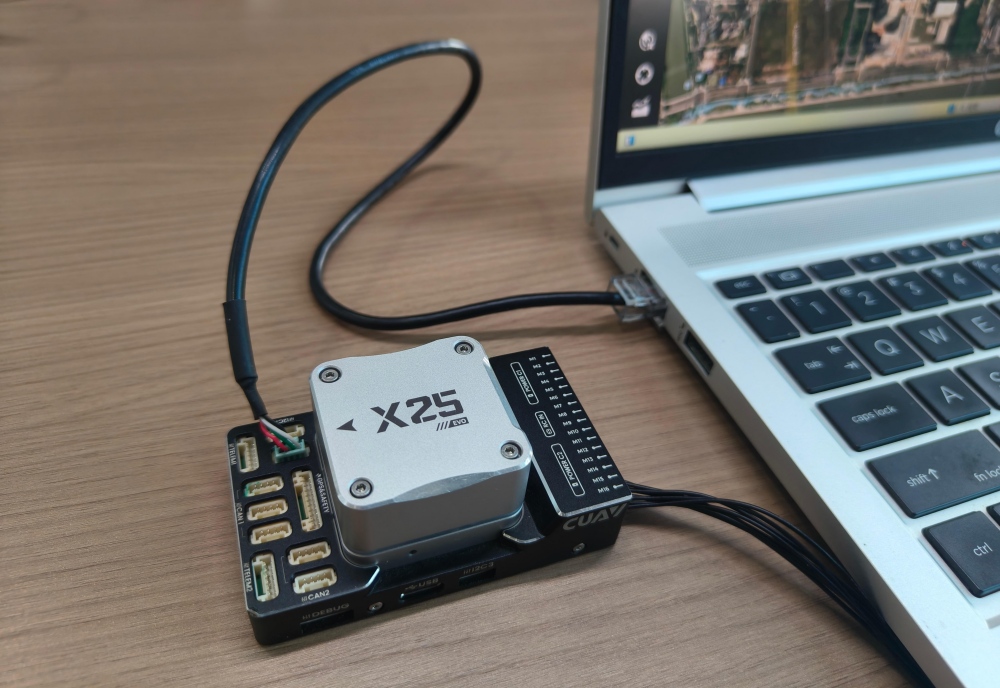
Controller parameters
| 📂 Group | 🏷️ Parameter | 💻 Client (recommended) | 🖥️ Server |
|---|---|---|---|
| Enable Ethernet | NET_ENABLE | 1 | 1 |
| Disable DHCP | NET_DHCP | 0 | 0 |
| Network role | NET_P1_TYPE | 1 | 2 |
| Gateway | NET_GWADDR0 | 192 | 192 |
| Gateway | NET_GWADDR1 | 168 | 168 |
| Gateway | NET_GWADDR2 | 144 | 144 |
| Gateway | NET_GWADDR3 | 1 | 1 |
| Controller IP | NET_IPADDR0 | 192 | 192 |
| Controller IP | NET_IPADDR1 | 168 | 168 |
| Controller IP | NET_IPADDR2 | 144 | 144 |
| Controller IP | NET_IPADDR3 | 14 | 14 |
| Target IP | NET_P1_IP0 | 192 | 0 |
| Target IP | NET_P1_IP1 | 168 | 0 |
| Target IP | NET_P1_IP2 | 144 | 0 |
| Target IP | NET_P1_IP3 | 15 | 0 |
| Port | NET_P1_PORT | 14550 | 14550 |
| Protocol | NET_P1_PROTOCOL | 2 | 2 |
Computer IP configuration
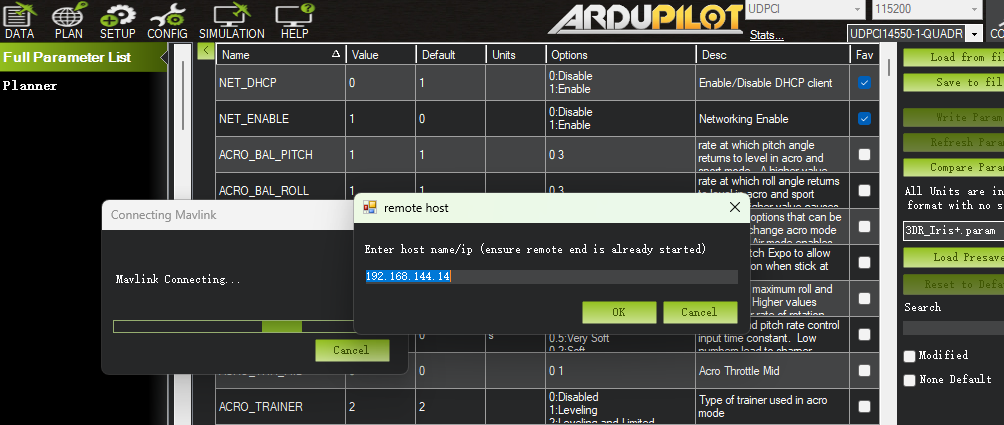
The gateway, the computer and the other devices on the LAN must share a subnet (for example 192.168.144.15) before they can talk.
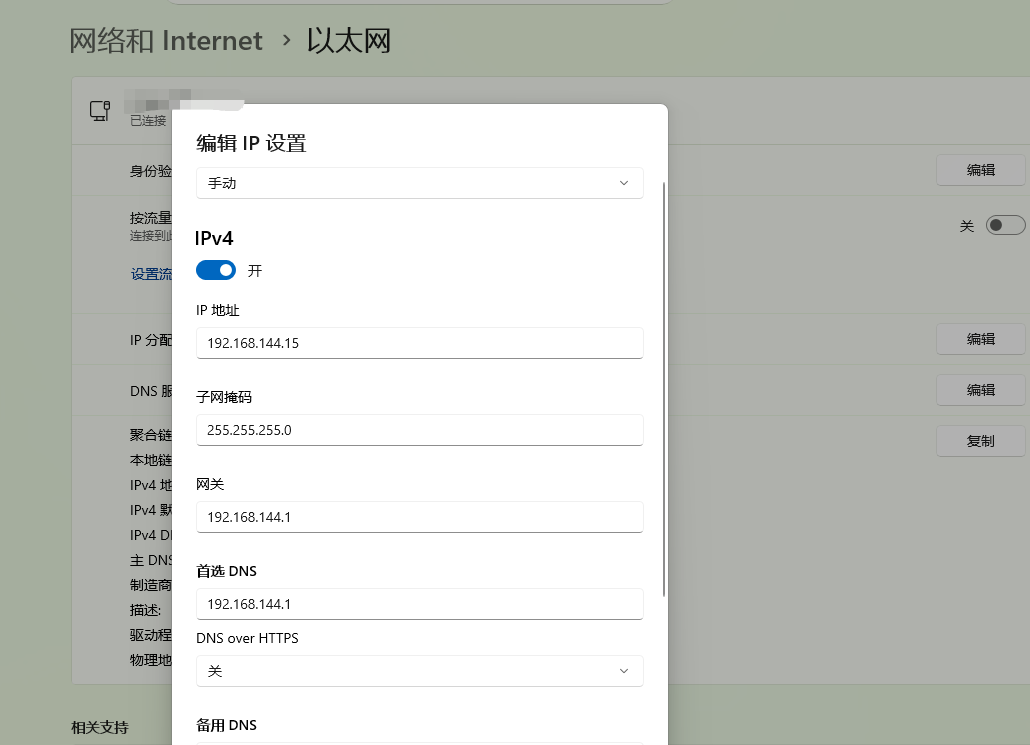
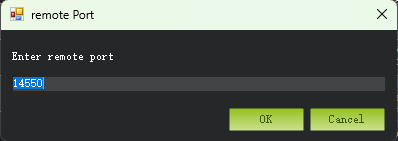
- Client mode: the controller pushes the stream to the computer, which only has to listen on that port. Choose UDP in the ground station (set the IP to 127.0.0.1 if it asks for one) and enter the port number.
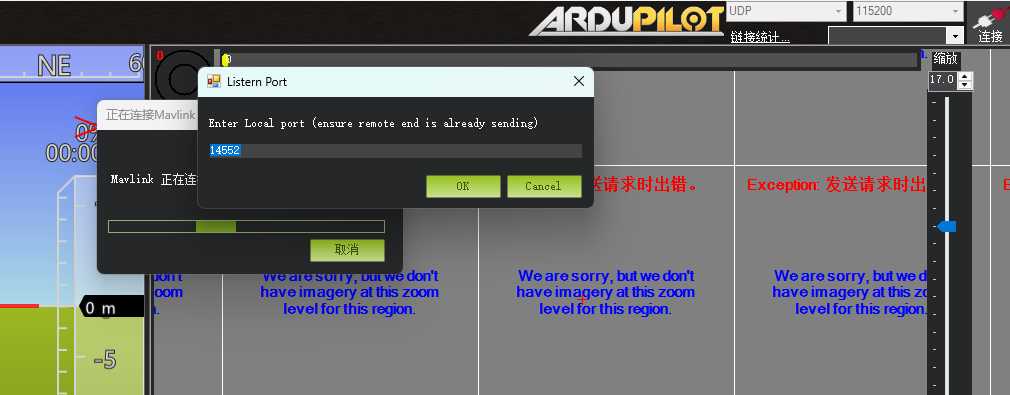
- Server mode: the ground station pulls the stream. Connect with UDPCl and enter the controller's IP and port. The controller's
NET_P1_IPxgroup should be 0, or the controller's own IP.
Case 2: Several Ethernet devices
The example uses:
CUAV Pixhawk V6X
SIYI A8 mini gimbal / HD camera
H16 telemetry system
BotBlox ArduPilot Ethernet switch
The controller is the client and the gimbal camera is the server: the controller pushes data to the camera.
📷 Controller parameters
| 🏷️ Parameter | ⚙️ Value | 📝 Notes |
|---|---|---|
NET_ENABLE | 1 | Enable Ethernet |
NET_DHCP | 0 | Off when there is no DHCP server |
NET_IPADDR0 | 192 | Controller IP byte 1 |
NET_IPADDR1 | 168 | Controller IP byte 2 |
NET_IPADDR2 | 144 | Controller IP byte 3 |
NET_IPADDR3 | 26 | Must be unique on the network; the remote controller uses 10/11 |
NET_NETMASK | 24 | Subnet mask (255.255.255.0) |
NET_GWADDR0 | 192 | Gateway IP byte 1 |
NET_GWADDR1 | 168 | Gateway IP byte 2 |
NET_GWADDR2 | 144 | Gateway IP byte 3 |
NET_GWADDR3 | 1 | Gateway IP byte 4 |
Teach ArduPilot about the gimbal and send it commands over a virtual serial port on Ethernet.
| 🏷️ Parameter | ⚙️ Value | 📝 Notes |
|---|---|---|
CAM1_TYPE | 4 | Allows shutter and other camera control |
MNT1_TYPE | 8 | SIYI mount type |
MNT1_YAW_MAX | 135 | Maximum gimbal yaw |
MNT1_YAW_MIN | -135 | Minimum gimbal yaw |
NET_P1_TYPE | 1 | Network port 1: UDP client |
NET_P1_IP0 | 192 | Server (gimbal) IP byte 1 |
NET_P1_IP1 | 168 | Server (gimbal) IP byte 2 |
NET_P1_IP2 | 144 | Server (gimbal) IP byte 3 |
NET_P1_IP3 | 25 | Server (gimbal) IP byte 4 |
NET_P1_PORT | 37260 | Port the gimbal listens on |
NET_P1_PROTOCOL | 8 | Gimbal serial protocol |
Set up a MAVLink path between the controller and the ground station's air unit.
| 🏷️ Parameter | ⚙️ Value | 📝 Notes |
|---|---|---|
NET_P2_TYPE | 1 | Network port 2: UDP client |
NET_P2_IP0 | 192 | Server (ground station) IP byte 1 |
NET_P2_IP1 | 168 | Server (ground station) IP byte 2 |
NET_P2_IP2 | 144 | Server (ground station) IP byte 3 |
NET_P2_IP3 | 11 | Server (ground station) IP byte 4 |
NET_P2_PORT | 14550 | Telemetry port |
NET_P2_PROTOCOL | 2 | MAVLink2 |
NOTE
Video: Ethernet carries several streams at once, and video does not pass through the controller. Point the ground station's video link at the gimbal camera's IP and port and the picture appears.
Case 3: Downloading logs over the web
ArduPilot's LUA bindings let a controller run an application as a web server. The official net_webserver.lua applet serves the contents of the controller's microSD card to a browser, which makes log downloads quick, and can show vehicle and system status at the same time (armed state, GPS/AHRS position and so on).
How it works
- The script listens on the controller's network interface (ETH), port 8080 by default.
- The microSD card root is the web root, so logs can be browsed and downloaded straight from a browser.
- LUA expressions can be embedded in
.shtmlfiles for dynamic content, and LUA CGI scripts in acgi-binfolder at the card root are supported too.
Step 1: Get and install the script
- Download
net_webserver.luafrom the ArduPilot repository:https://github.com/ArduPilot/ardupilot/tree/master/libraries/AP_Scripting/applets/net_webserver.lua - Upload it to
/APM/scripts/on the microSD card (over the Scripting page in QGC, or with MAVFTP). - Set
SCR_ENABLE = 1and restart the controller.
NOTE
SCR_ENABLE only takes effect after a restart, and the script registers the WEB_* parameters when it runs — they only appear in the parameter list after that restart.
Step 2: Configure the web server
| 🏷️ Parameter | ⚙️ Value | 📝 Notes |
|---|---|---|
WEB_ENABLE | 1 | Enable the web server |
WEB_PORT | 8080 | Listen port; change it if you need to |
WEB_DEBUG | 0 | Verbose debug output |
WEB_BLKSIZE | - | Network/file block size; larger is faster but uses more memory |
WEB_TIMEOUT | - | Idle client connection timeout, in seconds |
Step 3 (optional): Test it in SITL
With no hardware to hand, you can try the web server in simulation first:
- Start SITL, for example
sim_vehicle.py -v ArduCopter. - Create a
scriptsfolder in the SITL run directory and putnet_webserver.luain it. - Set
SCR_ENABLE = 1and restart SITL. - Set
SCR_VM_I_COUNT = 1000000(the web server is compute-heavy, so the instruction limit has to go up) and restart SITL. - Open http://127.0.0.1:8080 in a browser.
NOTE
SITL emulates the controller's network interface on the host machine, so you use 127.0.0.1. It must be http, not https, or the connection fails.
Step 4: Connect to a real controller
- Put the controller's ETH port on the LAN (direct to a computer, or through an Ethernet switch).
- Configure the network as above:
NET_ENABLE = 1and restart; setNET_IPADDR0~3(for example192.168.144.14),NET_NETMASK = 24and the gateway, so the computer and the controller share a subnet. - In the computer's browser open http://<controller IP>:8080, for example
http://192.168.144.14:8080.
Downloading logs
- Opening
http://<controller IP>:8080shows the microSD card root. - Go into
APM/logsto see the.binlog for each flight — click to download, far quicker than over telemetry.
Custom dynamic pages (example)
Put index.shtml at the card root and embedded LUA can display controller status:
<h1>Controller status</h1>
<p>Armed: <?lstr vehicle:get_armed() ?></p>
<p>Latitude (deg): <?lstr ahrs:get_location():lat()/1e7 ?></p>
<p>Longitude (deg): <?lstr ahrs:get_location():lng()/1e7 ?></p>- Multi-line logic can be embedded as
<?lua ... return "string" ?>. - A
cgi-binfolder at the card root can hold.luaCGI scripts for dynamic responses.
WARNING
- The web server supports http only, never https.
- A change to
WEB_PORTneeds a restart of the script or controller. - The web server uses network bandwidth and controller resources — use it sensibly. With many logs on the card, building the listing gets slow.