

GPS and RTK Module Setup
TIP
LGC Ground Station configures GPS and RTK modules graphically. Click the GPS/RTK icon and follow the on-screen steps. The module position slider sets the GPS offset, and the Positioning module 2 slider configures GPS2.
- Connect LGC Ground Station to the controller.
- Open UAV Setup > Positioning module.
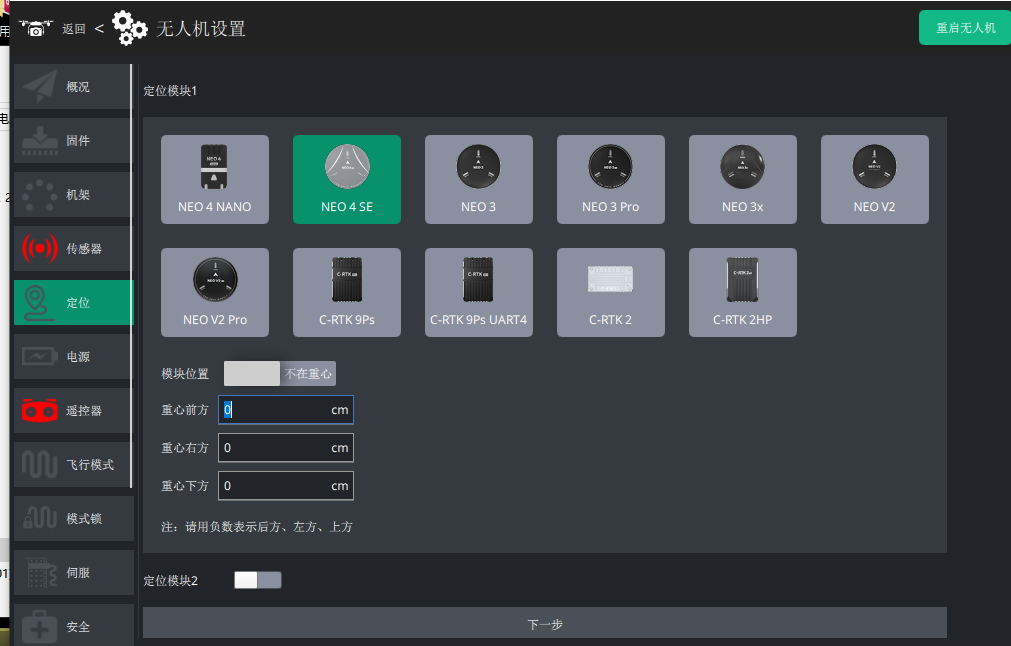
- If the GPS/RTK antenna is not mounted at the centre of gravity, turn Module position off from the centre and enter the offset from the centre of gravity.
TIP
A wrong GPS offset makes the aircraft drift off the spot when it yaws in place instead of turning about its own axis. If you have GPS2 as a redundant unit, click Positioning module 2 to enable it.
- Click Next and wire the hardware as shown in the diagram.
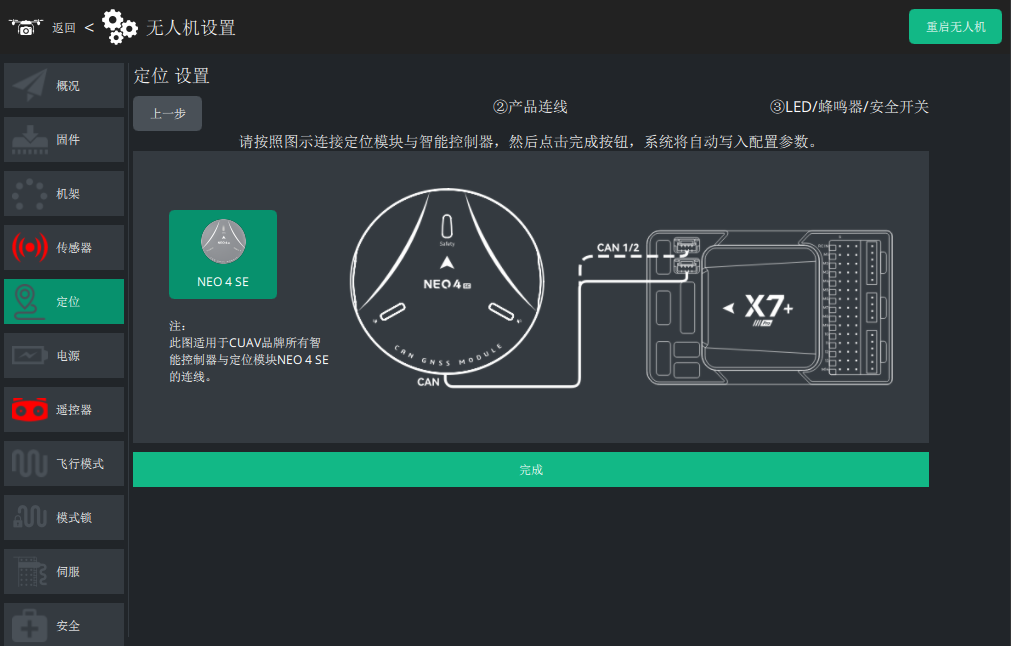
- Click Finish and restart the controller as prompted.
Dual-antenna position and heading
When GPS1 is a C-RTK 9Ps and GPS2 is a C-RTK 9Ps on UART4, the system shows the heading source settings.
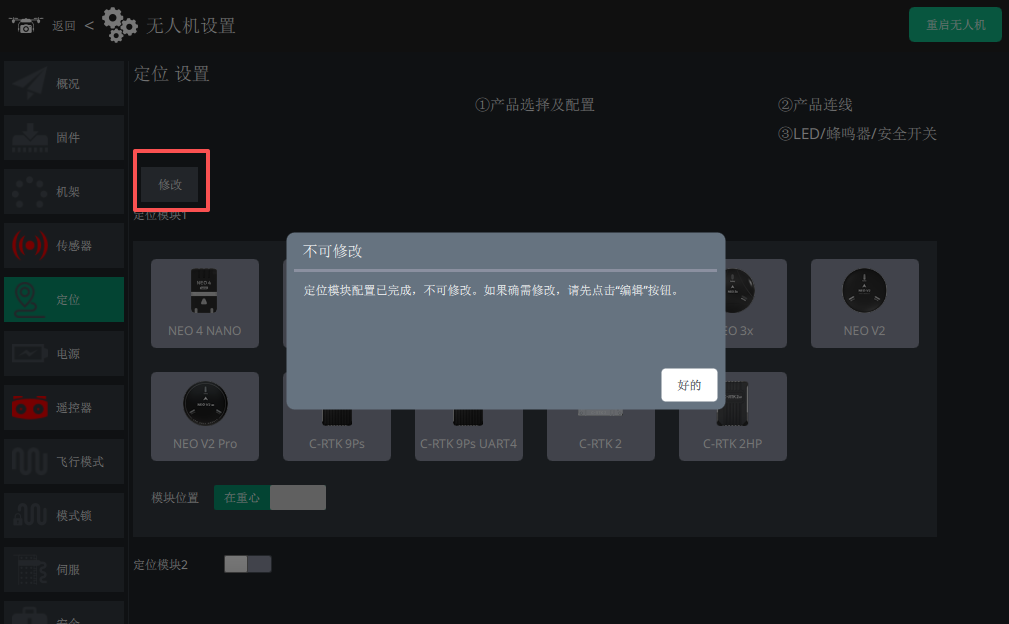
Changing the positioning settings
To change the GPS settings after setup, click Modify in the top left corner first.
RTK base station setup
If you are using a C-RTK series module, you can add an RTK base station for centimetre-level positioning.
- Open LGC Ground Station, click the LGC icon, then App Settings > General. Scroll the right-hand pane down to the RTK GPS section.
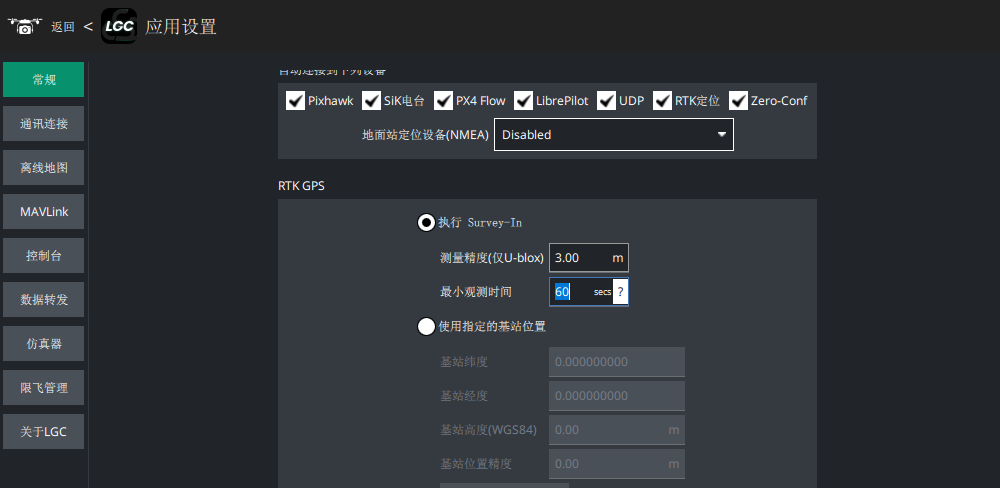
- Choose to run a Survey In.
- Set the survey accuracy to 3–3.5 m and the minimum observation time to 60 s.
- Restart LGC Ground Station.
TIP
Survey accuracy here is the single-point convergence accuracy of the base station, not the accuracy after RTK fixing. 3–3.5 m is a reasonable balance between environment and speed — at that setting the rover still resolves to centimetre accuracy. If the base station is already configured, skip all of this and go to the next step.
- Connect the RTK base station, raise the antenna and set it up outdoors with a clear sky view.
- LGC detects the base station and starts convergence. The RTK icon turns red and shows the current accuracy and satellite information.
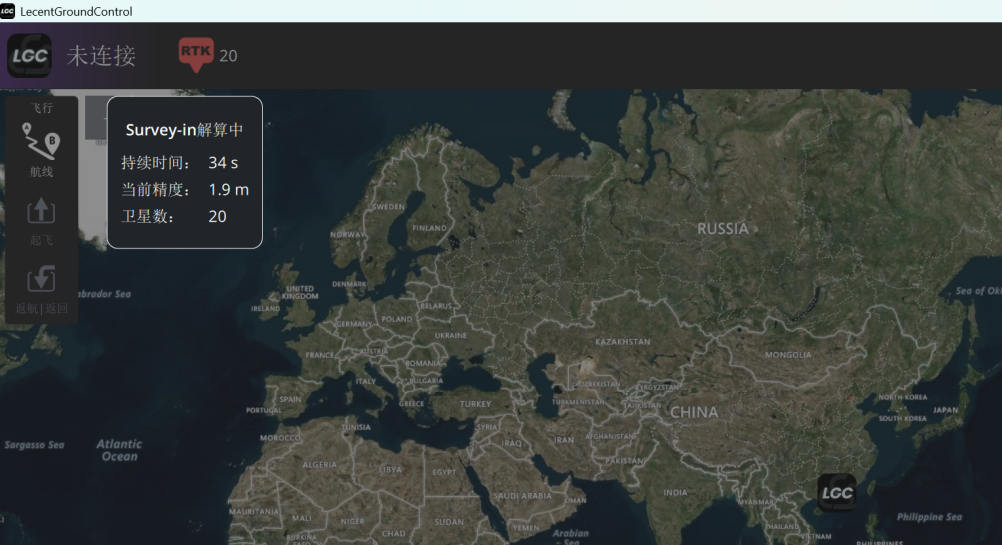
- Once the accuracy meets the threshold and the observation time is up, the RTK icon turns white.
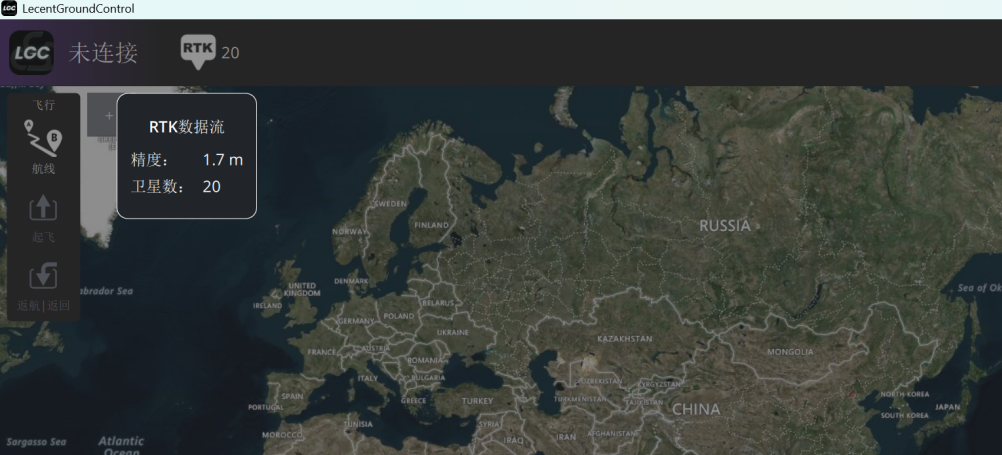
When a vehicle or aircraft carrying an RTK rover is connected, LGC forwards the base station's RTCM corrections to the rover through the controller for differential solving.
The rover receives the RTCM data, solves it and enters RTK status. (RTK Fixed gives the highest accuracy.)
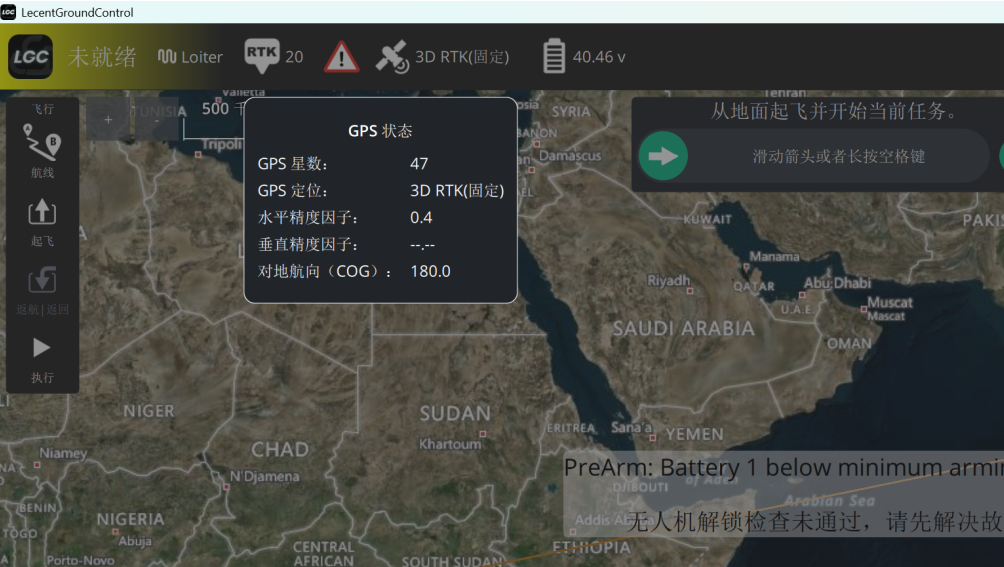
NTRIP / network RTK base / CORS
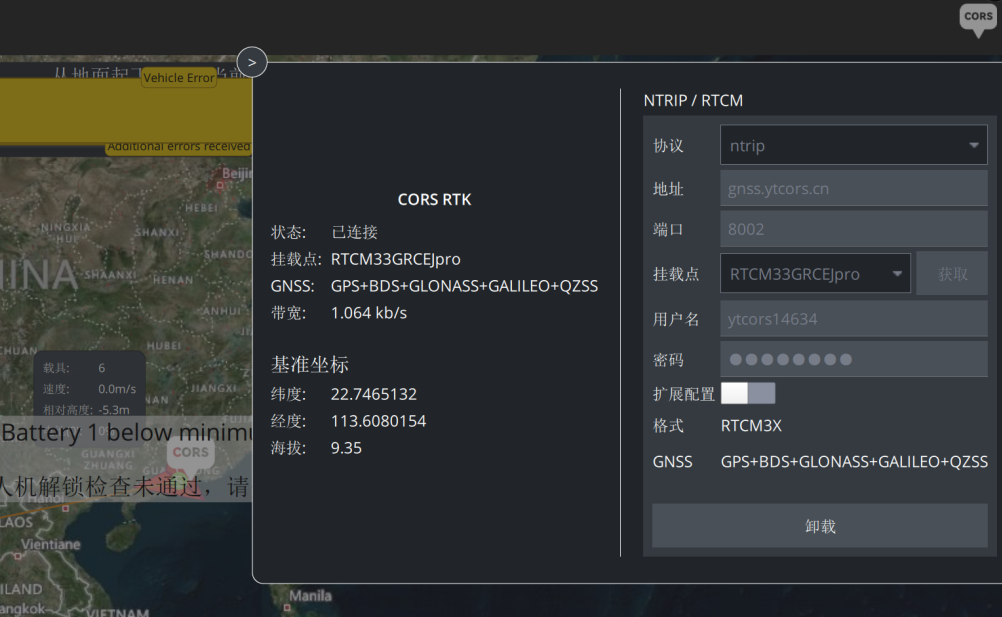
LGC supports network RTK (CORS/NTRIP). Click the CORS icon in the top right of the main screen to see RTK status; click it again to open the NTRIP settings.
- Buy a network RTK (CORS) account (Qianxun, China Mobile and similar providers).
- Make sure LGC Ground Station has internet access (computer or phone online).
- Select
ntripas the protocol. - Enter the IP and account details from the provider. The controller uses WGS84, so set the port to 8002.
- Enter the account and password to fetch the mount points, then pick one.
- Check the base station information on the left — once data arrives, the setup works.
TIP
For a network RTK base, LGC has to know where the vehicle or aircraft is before it can pick the nearest base station. Without a position fix you cannot get RTK service.