

Mission Planning
An automatic mission is where a drone becomes genuinely useful — it is also what sets it apart from conventional aviation. Preset commands (altitude, loiter time, camera triggering, conditional triggers, channel triggers and so on) let it fly beyond visual line of sight for wide-area inspection, aerial survey and logistics. LGC, Mission Planner or QGC can edit a mission and upload it to the aircraft.
Opening LGC mission planning
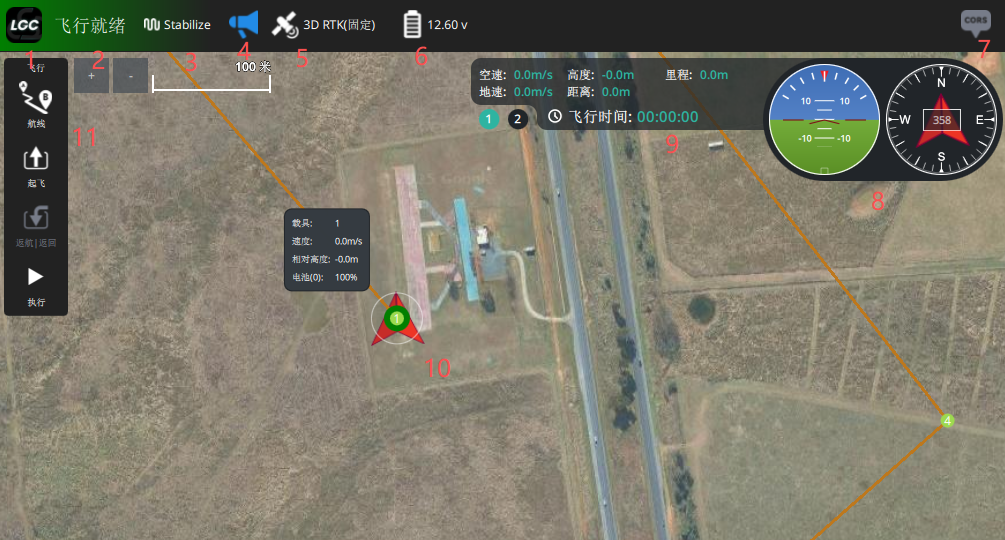
- Click the mission icon on the flight data screen to open mission planning. //item 11
Simple multirotor mission
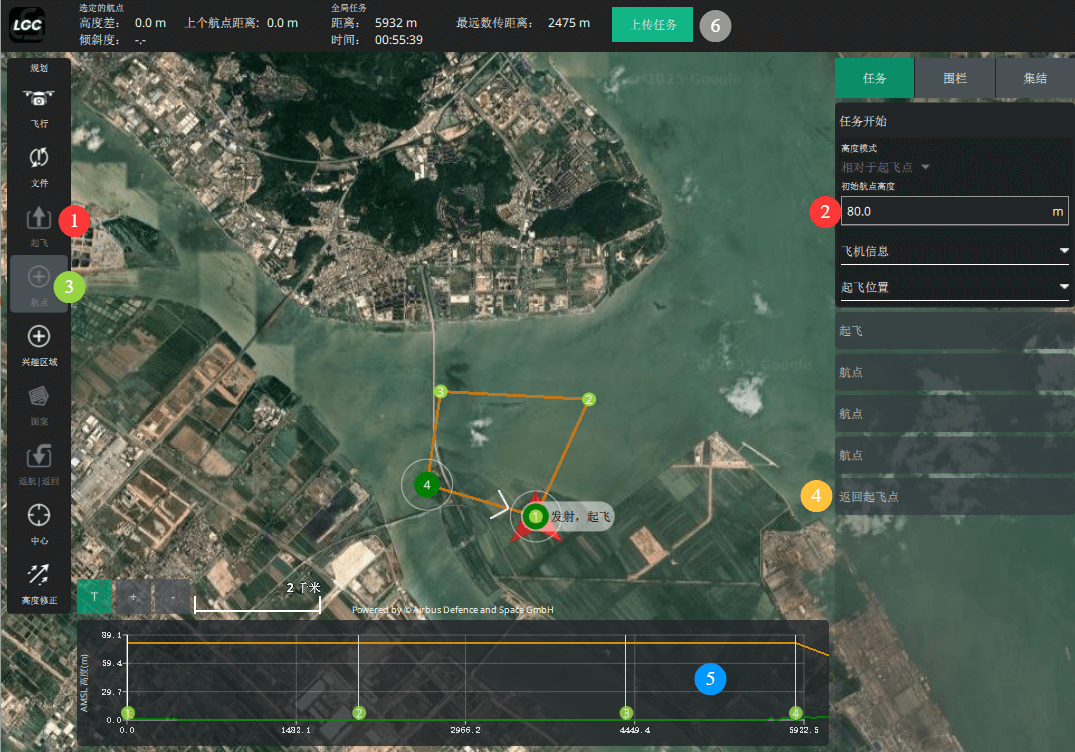
- Set the mission altitude (used as the default for waypoints);
- Add a takeoff command — the takeoff tab sets the altitude, after which it flies on to the next waypoint;
- Add waypoints: click Waypoint in the flight toolbar, then click the target on the map to add one;
//To insert between existing waypoints, select the preceding waypoint first, then click the target; - Add a return command: click RTL / Return in the flight toolbar to add a return to the takeoff point at the end of the mission;
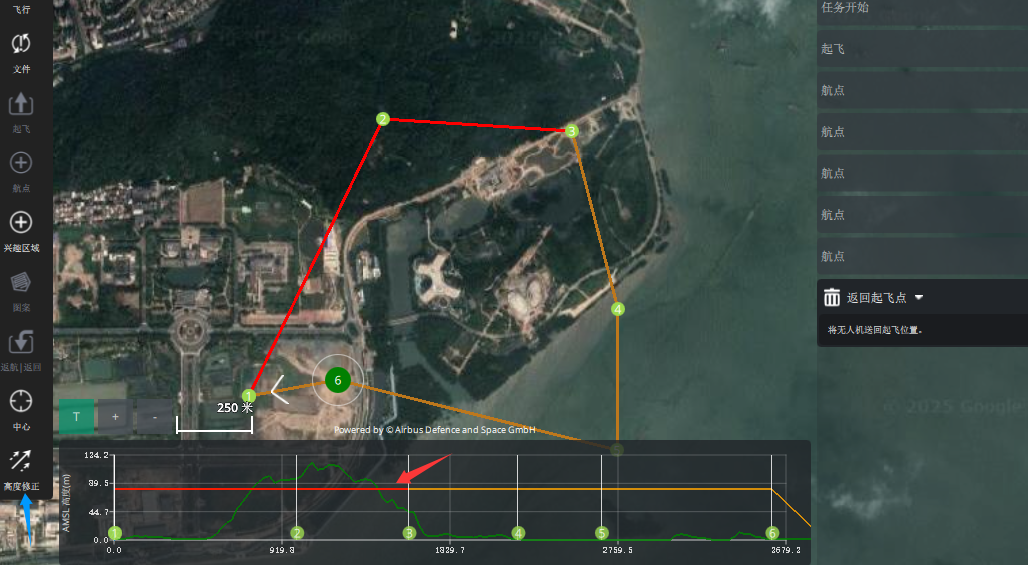
- AMSL terrain check: looks for places where the mission runs too close to the terrain; if there are any, correct altitude to raise the conflicting part of the path;
- Upload the mission to the aircraft;
Survey and grid missions
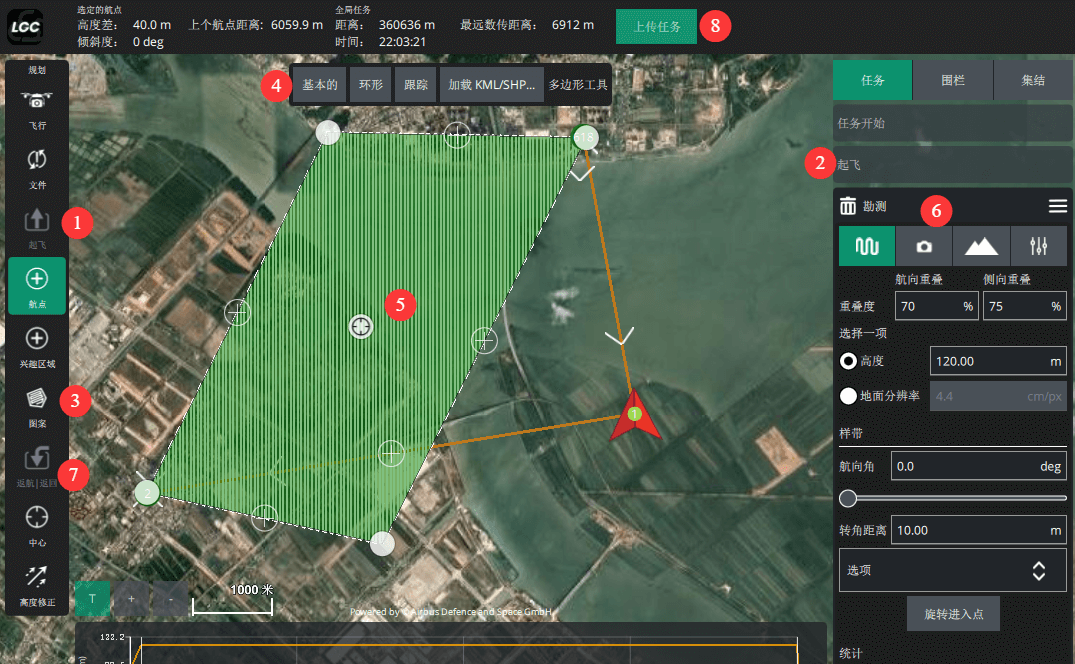
Add a takeoff command — the takeoff tab sets the altitude, after which it flies on to the next waypoint;
Add waypoints (optional): click Waypoint in the flight toolbar, then click the target on the map;
//Waypoints can lead the aircraft onto the survey lines;Pattern > Survey > Grid / Circle: create a survey area and drag its vertices to fit; the survey tab sets overlap, altitude, camera options and so on;
Add a return command: click RTL / Return in the flight toolbar to add a return to the takeoff point at the end of the mission;
Upload the mission to the aircraft;
Corridor missions (survey or linear inspection)
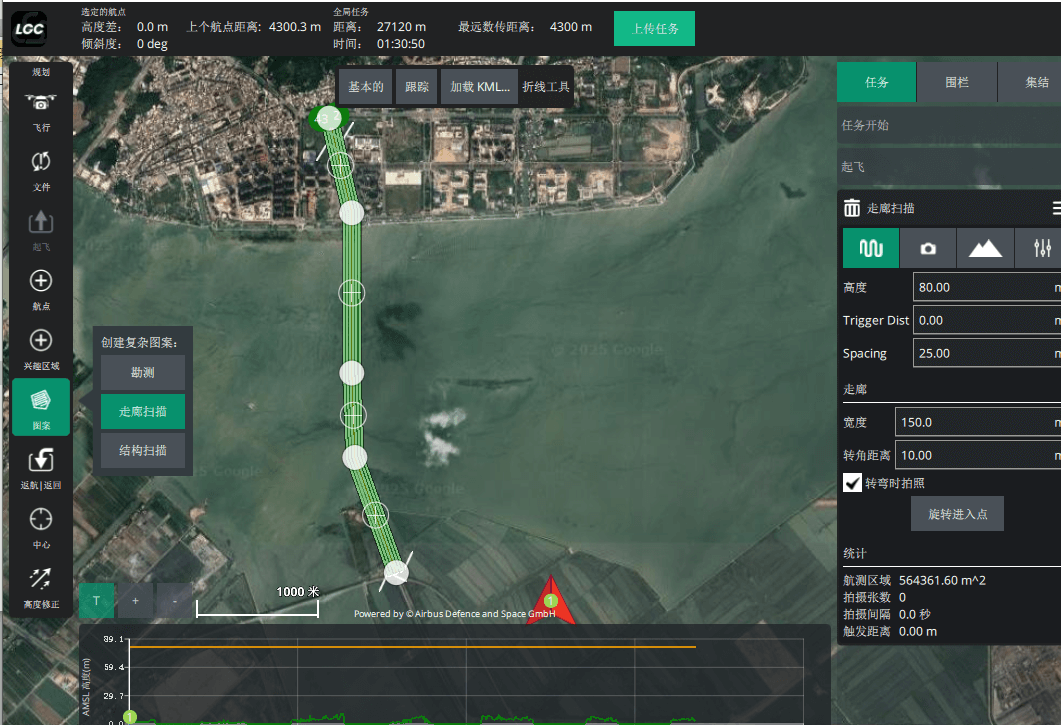
Add a takeoff command — the takeoff tab sets the altitude, after which it flies on to the next waypoint;
Add waypoints (optional): click Waypoint in the flight toolbar, then click the target on the map;
//Waypoints can lead the aircraft onto the corridor;Pattern > Corridor scan > Grid / Track: create a corridor; the tab sets the altitude, corridor width, camera options and so on;
Add a return command: click RTL / Return in the flight toolbar to add a return to the takeoff point at the end of the mission;
Upload the mission to the aircraft;
Structure scanning (3D modelling, facade cleaning)
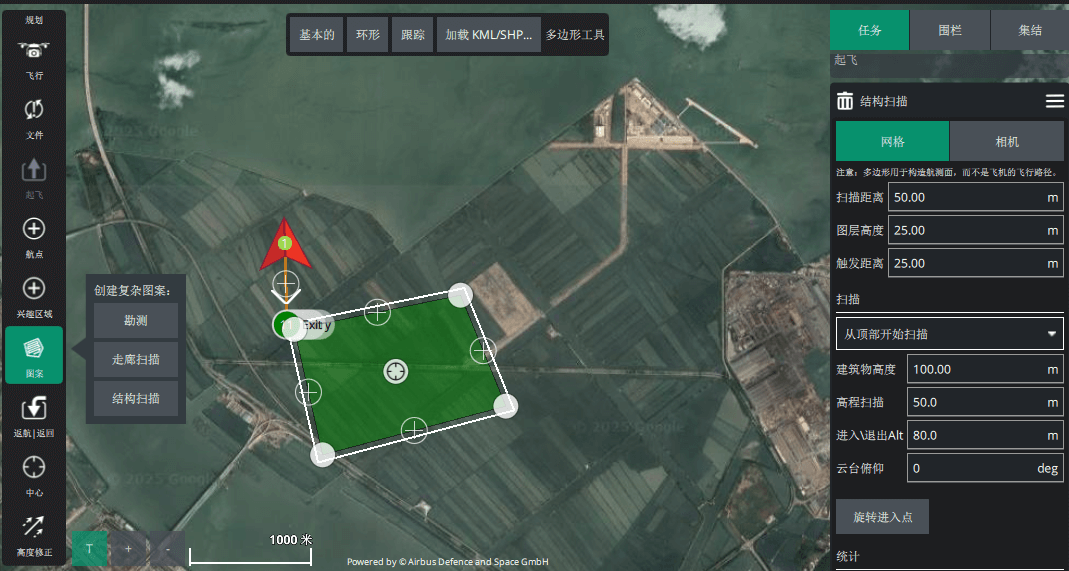
- Add a takeoff command — the takeoff tab sets the altitude, after which it flies on to the next waypoint;
- Pattern > Structure scan > Grid / Track: create a structure scan; the stand-off distance and height can be set;
- Add a return command: click RTL / Return in the flight toolbar to add a return to the takeoff point at the end of the mission;
- Upload the mission to the aircraft;
Downloading and importing missions
TIP
The File tool in the flight toolbar saves a mission locally, opens a mission file, or uploads and downloads between the ground station and the aircraft.
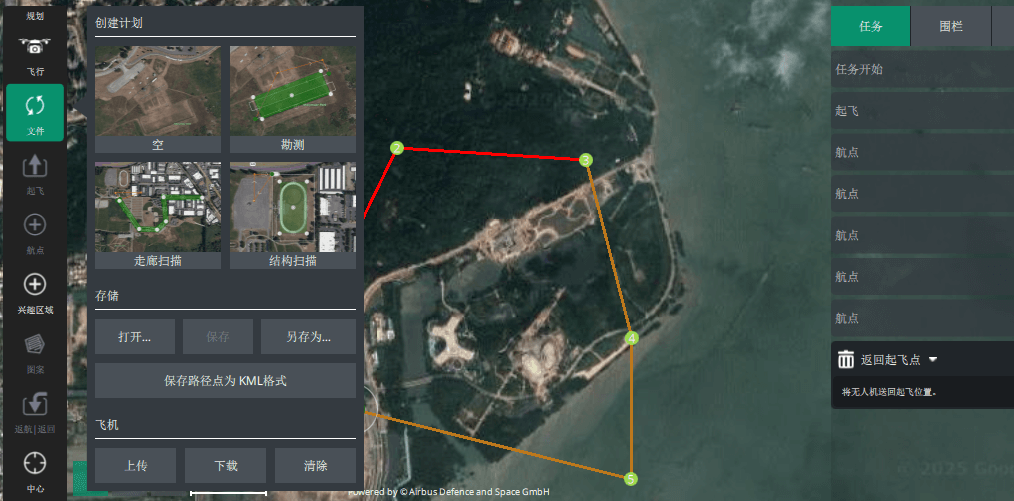
Mission command editor
NOTE
A mission is not only takeoff, land and return — there is a wide range of command types.
- Common commands: open the drop-down at item 1, pick a command from the list and the command type changes
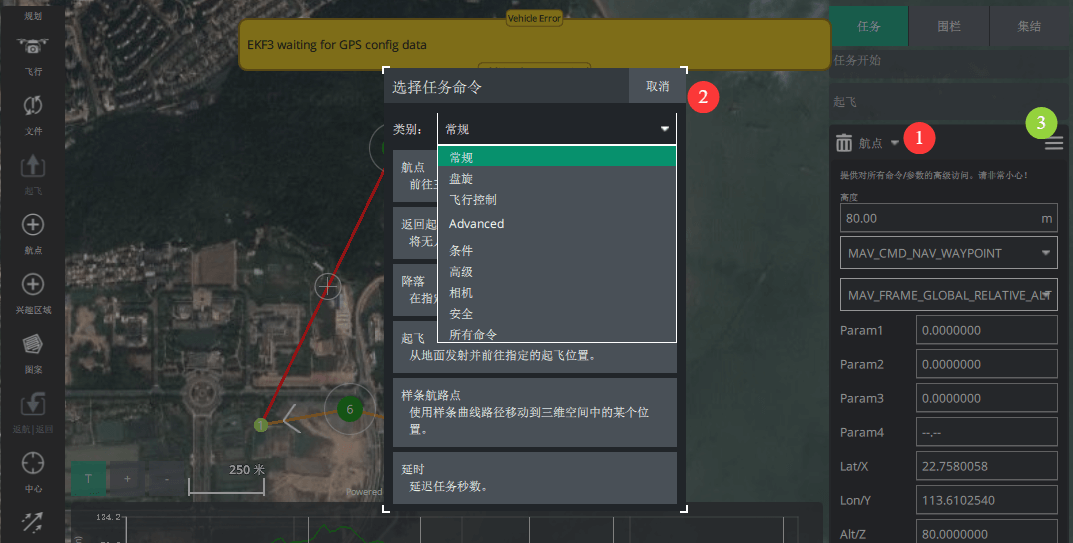
- Show all values lets you set the waypoint command, altitude, latitude and longitude, and the open parameters