

Logs and Fault Analysis
By default the aircraft creates a dataflash log on the SD card as soon as it arms. Download it after the flight, or read the card directly.
TIP
Dataflash logs open in Mission Planner, MAVExplorer, the ArduPilot web tools or the PID review tool. They are the aircraft's black box: post-flight fault analysis, flight performance checks and PID tuning all come from them.
NOTE
To log from power-on while you are debugging, set LOG_DISARMED to 1. For a first flight or for PID analysis, set up logging for tuning first.
Logging parameters
| Parameter | What it does | Values |
|---|---|---|
| LOG_BACKEND_TYPE | Where logs are stored or streamed (bitmask, can be combined) | 0: disabled; 1: SD card (the usual choice); 2: MAVLink streaming (needs 921600 baud); 4: onboard dataflash (on boards that have it) |
| LOG_BITMASK | What gets logged, and therefore how detailed and how big the file is | 0: disabled; default: core data kept; other values: set per aircraft type, dropping what you do not need to keep files small |
| LOG_DISARMED | Logging behaviour while disarmed | 0: log only after arming; 1: log from power-on (for debugging); 2: log when not powered over USB; 3: delete logs from unarmed sessions |
| LOG_FILE_DSRMROT | Log file rotation, to split multi-stage flights | Non-zero: disarm, 15 s, re-arm forces a new file; 0: default, one file per power cycle |
| LOG_FILE_MB_FREE | Minimum free space kept on the storage medium | Default 500 MB; when space runs short the oldest logs are deleted |
| LOG_FILE_RATEMAX | Caps the streaming log write rate, which controls file size | Default 0 (no limit); the rate depends on SCHED_LOOP_RATE; related: LOG_BLK_RATEMAX (block logging) and LOG_MAV_RATEMAX (MAVLink logging) |
| LOG_MAX_FILES | Maximum number of log files, wrapping round | 1~500; once full, new logs overwrite the oldest |
Downloading flash logs
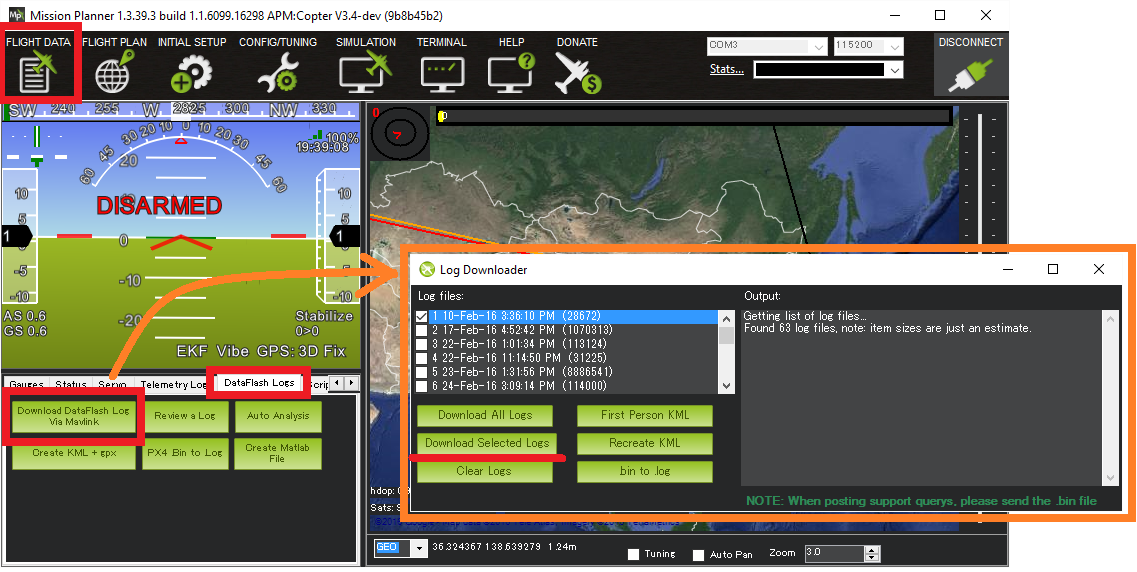
- Connect the aircraft to the ground station over USB.
- Open Mission Planner's Flight Data screen.
- Click the DataFlash Logs tab at the bottom left and press Download DataFlash Log Via Mavlink.
- Pick the logs to download. They land in the
MissionPlanner/logsfolder, sorted by aircraft type (aQUADCOPTERfolder, for example).
What gets logged
LOG_BITMASK controls which message types are logged; the bit definitions differ between vehicle types. This is the Copter bitmask:
| Bit | Bitmask name | What is logged when set |
|---|---|---|
| 0 | Fast Attitude | Attitude at SCHED_LOOP_RATE; required for PID review |
| 1 | Medium Attitude | Attitude at 10 Hz |
| 2 | GPS | GPS data |
| 3 | System Performance | CPU and other performance data |
| 4 | Control Tuning | Control data |
| 5 | Navigation Tuning | Navigation data |
| 6 | RC Input | Transmitter input |
| 7 | IMU | IMU (accelerometer and gyro) data |
| 8 | Mission Commands | Mission and GCS commands |
| 9 | Battery Monitor | Battery data |
| 10 | RC Output | Servo output |
| 11 | Optical Flow | Optical flow data |
| 12 | PID | PID controller data; required for PID review |
| 13 | Compass | Compass data |
| 15 | Camera | Camera data |
| 17 | Motors | Motor data |
| 19 | Raw IMU | Raw, unprocessed IMU data |
| 20 | Video Stabilization | Attitude at SCHED_LOOP_RATE |
| 21 | Fast harmonic notch | Fast harmonic notch data |
NOTE
The ATTITUDE message is logged at the highest rate among the options you selected. EKF3 logging is controlled separately by EK3_LOG_LEVEL.
Replaying logs
These four tools replay and analyse logs: