

Inspection Camera (Gimbal) Setup
If the gimbal camera on an inspection drone supports MAVLink, connect it to the controller — then the ground station can control the camera directly and the camera and aircraft stay in step.
NOTE
Cameras without MAVLink support are normally mounted independently. They are not connected to the controller: video goes back over the video link and the camera is driven by the maker's own software, so aircraft control and camera control stay separate.
Hardware connection
Taking a Viewpro gimbal on an X25 EVO as the example.
Controller parameters
SERIAL2_PROTOCOL=8       //Set the port to Gimbal; adjust to the port you use — here we assume Serial2/TELEM2.
SERIAL_BAUD=115          //Set the baud rate to 115200; match the gimbal camera.
MNT1_TYPE=?              //Mount driver — set it to the camera maker's.
CAM1_TYPE=4            //Camera control type (Mount)
To control the camera from transmitter channels, map them like this:
RC6_OPTION=213       //(MOUNT Pitch) use channel 6 to tilt the gimbal.
RC7_OPTION=214       //(MOUNT Yaw) use channel 7 to pan the gimbal.
RC8_OPTION=166       //(Camera record) start and stop recording.
Other mappings you may need (x is the channel number):
| Parameter | Value | Function |
|---|---|---|
| RCx_OPTION | 166 | Camera record: start/stop video |
| RCx_OPTION | 168 | Manual focus: adjust focus near/far |
| RCx_OPTION | 169 | Auto focus: trigger autofocus |
| RCx_OPTION | 174 | Camera tracking: track the target at frame centre |
| RCx_OPTION | 175 | Camera lens: choose which video stream goes to the GCS |
| RCx_OPTION | 177 | Rangefinder (if fitted) |
Camera setup
Every device on the Ethernet network must be in the same subnet (the first three octets of the IP match, the last differs). You may need to change the camera's IP address or subnet.
- Connect the camera to the computer over Ethernet, then open Settings > Network & Internet > Ethernet.
- Find the IP assignment, click Edit and choose Manual.
- Set the computer's addressing as below so it can reach the camera to configure it.
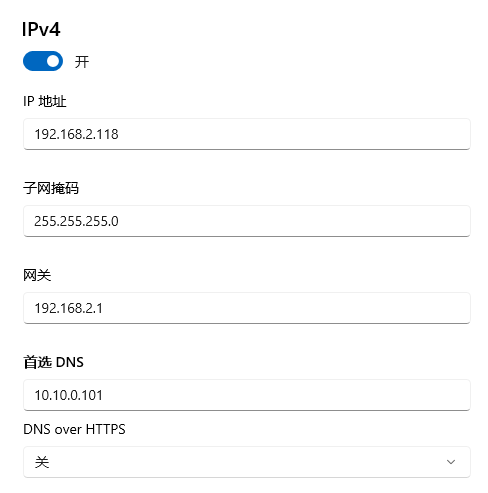
- Click Save (note that you will probably lose internet access).
- Open a browser and go to
http://192.168.2.119:8554/index.htmlto reach the Viewpro camera settings. - Change the subnet to the target one (for an LBA3 remote controller, 192.168.10.119; for a G16, 192.168.144.119).
- Set the video source to H265 or H264.
- Click submit to save.